> ## Documentation Index
> Fetch the complete documentation index at: https://auth0.generaltranslation.app/llms.txt
> Use this file to discover all available pages before exploring further.

# Cas d’utilisation : Configurer un formulaire de politique de mise à jour à l’aide des formulaires.

> Configurer un formulaire de politique de mise à jour à l’aide des formulaires pour Actions.

<Card title="Avant de commencer">
  1. Créez une [application machine-machine](https://auth0.com/docs/get-started/auth0-overview/create-applications/machine-to-machine-apps) avec les permissions suivantes activées :

  * `read:users`
  * `update:users`
  * `create:users`
  * `read:users_app_metadata`
  * `update:users_app_metadata`
  * `create:users_app_metadata`

  2. Ajoutez une [Connexion au coffre-fort](/docs/fr-CA/fr-ca/customize/forms/vault) en utilisant les informations d’identification de l’application machine-machine (M-M).
</Card>

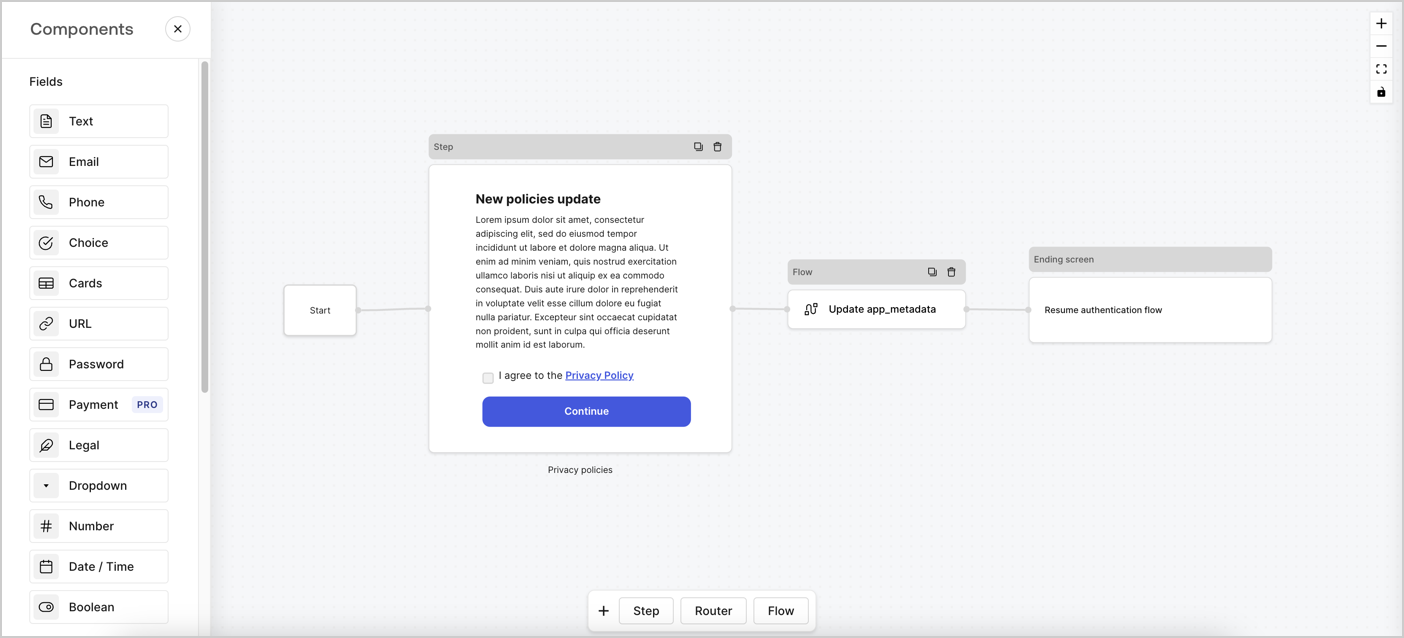
Les formulaires pour Actions vous permettent de créer des flux de politiques de confidentialité personnalisés et de stocker le consentement avec l’objet `app_metadata` .
<Frame>
  <img src="https://mintcdn.com/generaltranslationinc/9lDbWecp3mLK18lk/docs/images/fr-ca/cdy7uua7fh8z/6i68dMvHDTijfRmSgN1x8Q/ad900e7d4c0fb34645921435472b8684/privavy-policy-form.png?fit=max&auto=format&n=9lDbWecp3mLK18lk&q=85&s=1ddcfe4696995a83148b72731b85d803" alt="Dashboard > Actions > Forms > Privacy policy use case" data-og-width="1404" width="1404" data-og-height="638" height="638" data-path="docs/images/fr-ca/cdy7uua7fh8z/6i68dMvHDTijfRmSgN1x8Q/ad900e7d4c0fb34645921435472b8684/privavy-policy-form.png" data-optimize="true" data-opv="3" srcset="https://mintcdn.com/generaltranslationinc/9lDbWecp3mLK18lk/docs/images/fr-ca/cdy7uua7fh8z/6i68dMvHDTijfRmSgN1x8Q/ad900e7d4c0fb34645921435472b8684/privavy-policy-form.png?w=280&fit=max&auto=format&n=9lDbWecp3mLK18lk&q=85&s=106bc36222d19ec514c6577440a7be1d 280w, https://mintcdn.com/generaltranslationinc/9lDbWecp3mLK18lk/docs/images/fr-ca/cdy7uua7fh8z/6i68dMvHDTijfRmSgN1x8Q/ad900e7d4c0fb34645921435472b8684/privavy-policy-form.png?w=560&fit=max&auto=format&n=9lDbWecp3mLK18lk&q=85&s=42fda23797763581813f259a181d3df3 560w, https://mintcdn.com/generaltranslationinc/9lDbWecp3mLK18lk/docs/images/fr-ca/cdy7uua7fh8z/6i68dMvHDTijfRmSgN1x8Q/ad900e7d4c0fb34645921435472b8684/privavy-policy-form.png?w=840&fit=max&auto=format&n=9lDbWecp3mLK18lk&q=85&s=936c81f2aeacfdb33ffa3b1cdb68f78b 840w, https://mintcdn.com/generaltranslationinc/9lDbWecp3mLK18lk/docs/images/fr-ca/cdy7uua7fh8z/6i68dMvHDTijfRmSgN1x8Q/ad900e7d4c0fb34645921435472b8684/privavy-policy-form.png?w=1100&fit=max&auto=format&n=9lDbWecp3mLK18lk&q=85&s=edd23b77fa43127c43423761dff16af5 1100w, https://mintcdn.com/generaltranslationinc/9lDbWecp3mLK18lk/docs/images/fr-ca/cdy7uua7fh8z/6i68dMvHDTijfRmSgN1x8Q/ad900e7d4c0fb34645921435472b8684/privavy-policy-form.png?w=1650&fit=max&auto=format&n=9lDbWecp3mLK18lk&q=85&s=0251c25c468e2211bb6c761f61a8b604 1650w, https://mintcdn.com/generaltranslationinc/9lDbWecp3mLK18lk/docs/images/fr-ca/cdy7uua7fh8z/6i68dMvHDTijfRmSgN1x8Q/ad900e7d4c0fb34645921435472b8684/privavy-policy-form.png?w=2500&fit=max&auto=format&n=9lDbWecp3mLK18lk&q=85&s=22c0e71b1d1886962a880f7a255301cb 2500w" />
</Frame>

Les sections ci-dessous décrivent comment créer un formulaire de politique de mise à jour en utilisant des nœuds et des flux, ainsi que les étapes pour ajouter votre formulaire à une action [post-connexion](/docs/fr-CA/fr-ca/customize/actions/explore-triggers/signup-and-login-triggers/login-trigger).

<div id="create-a-form-from-scratch">
  ## Créer un formulaire à partir de zéro
</div>

Suivez ces étapes pour créer un formulaire afin de recueillir des informations :

1. Ouvrez l’éditeur de formulaires en sélectionnant **Auth0 Dashboard (tableau de bord Auth0) > Actions > Forms (formulaires).**
2. Sélectionnez **Créer un formulaire** > **Commencer à partir de zéro**.

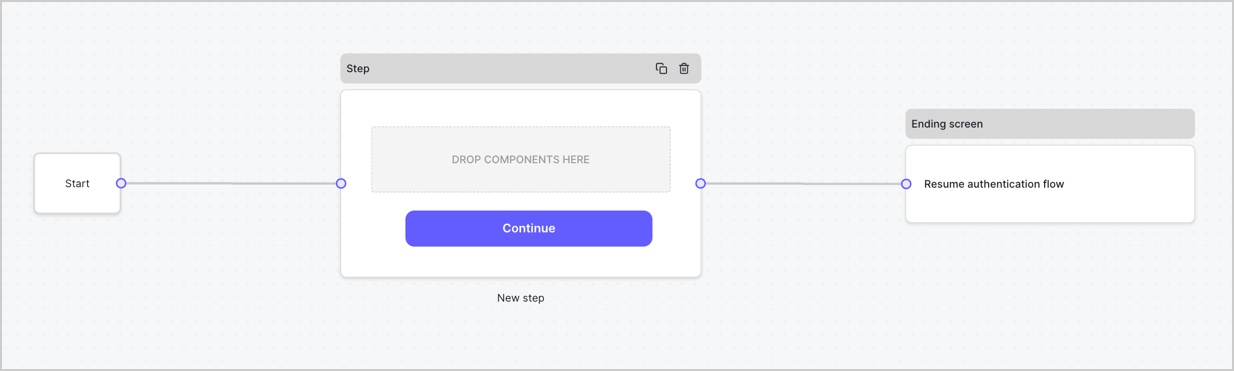
Par défaut, un nouveau formulaire contient un nœud Début, un nœud Étape et un nœud Éran fin.
<Frame>
  <img src="https://mintcdn.com/generaltranslationinc/I3Fs4t2ino3YdzfZ/docs/images/fr-ca/cdy7uua7fh8z/2TZ9jSjgEcARFpULI6hz4R/a4319a1bd482f2ee5cc23100fdb2f42c/New-form-Forms-for-action-use-case.png?fit=max&auto=format&n=I3Fs4t2ino3YdzfZ&q=85&s=aad421b6b99f929915f5c5410aa52c8b" alt="Dashboard > Forms > Use Cases > Form" data-og-width="1234" width="1234" data-og-height="371" height="371" data-path="docs/images/fr-ca/cdy7uua7fh8z/2TZ9jSjgEcARFpULI6hz4R/a4319a1bd482f2ee5cc23100fdb2f42c/New-form-Forms-for-action-use-case.png" data-optimize="true" data-opv="3" srcset="https://mintcdn.com/generaltranslationinc/I3Fs4t2ino3YdzfZ/docs/images/fr-ca/cdy7uua7fh8z/2TZ9jSjgEcARFpULI6hz4R/a4319a1bd482f2ee5cc23100fdb2f42c/New-form-Forms-for-action-use-case.png?w=280&fit=max&auto=format&n=I3Fs4t2ino3YdzfZ&q=85&s=b8d31ba5ed9a64f5657ee6ba62e8fe19 280w, https://mintcdn.com/generaltranslationinc/I3Fs4t2ino3YdzfZ/docs/images/fr-ca/cdy7uua7fh8z/2TZ9jSjgEcARFpULI6hz4R/a4319a1bd482f2ee5cc23100fdb2f42c/New-form-Forms-for-action-use-case.png?w=560&fit=max&auto=format&n=I3Fs4t2ino3YdzfZ&q=85&s=77d18a5847a6f6748a181683d732a40f 560w, https://mintcdn.com/generaltranslationinc/I3Fs4t2ino3YdzfZ/docs/images/fr-ca/cdy7uua7fh8z/2TZ9jSjgEcARFpULI6hz4R/a4319a1bd482f2ee5cc23100fdb2f42c/New-form-Forms-for-action-use-case.png?w=840&fit=max&auto=format&n=I3Fs4t2ino3YdzfZ&q=85&s=c2b14ab52d5c20e28db14f1ae8d5a89e 840w, https://mintcdn.com/generaltranslationinc/I3Fs4t2ino3YdzfZ/docs/images/fr-ca/cdy7uua7fh8z/2TZ9jSjgEcARFpULI6hz4R/a4319a1bd482f2ee5cc23100fdb2f42c/New-form-Forms-for-action-use-case.png?w=1100&fit=max&auto=format&n=I3Fs4t2ino3YdzfZ&q=85&s=6197cdf2a496b0815ca8a5a869cd6ad1 1100w, https://mintcdn.com/generaltranslationinc/I3Fs4t2ino3YdzfZ/docs/images/fr-ca/cdy7uua7fh8z/2TZ9jSjgEcARFpULI6hz4R/a4319a1bd482f2ee5cc23100fdb2f42c/New-form-Forms-for-action-use-case.png?w=1650&fit=max&auto=format&n=I3Fs4t2ino3YdzfZ&q=85&s=8455bcf17131e5034dd2b043349260b7 1650w, https://mintcdn.com/generaltranslationinc/I3Fs4t2ino3YdzfZ/docs/images/fr-ca/cdy7uua7fh8z/2TZ9jSjgEcARFpULI6hz4R/a4319a1bd482f2ee5cc23100fdb2f42c/New-form-Forms-for-action-use-case.png?w=2500&fit=max&auto=format&n=I3Fs4t2ino3YdzfZ&q=85&s=8703d7fe7453c32f3cf8504df530c883 2500w" />
</Frame>

<div id="configure-the-step-node">
  ### Configurer le nœud d’étape
</div>

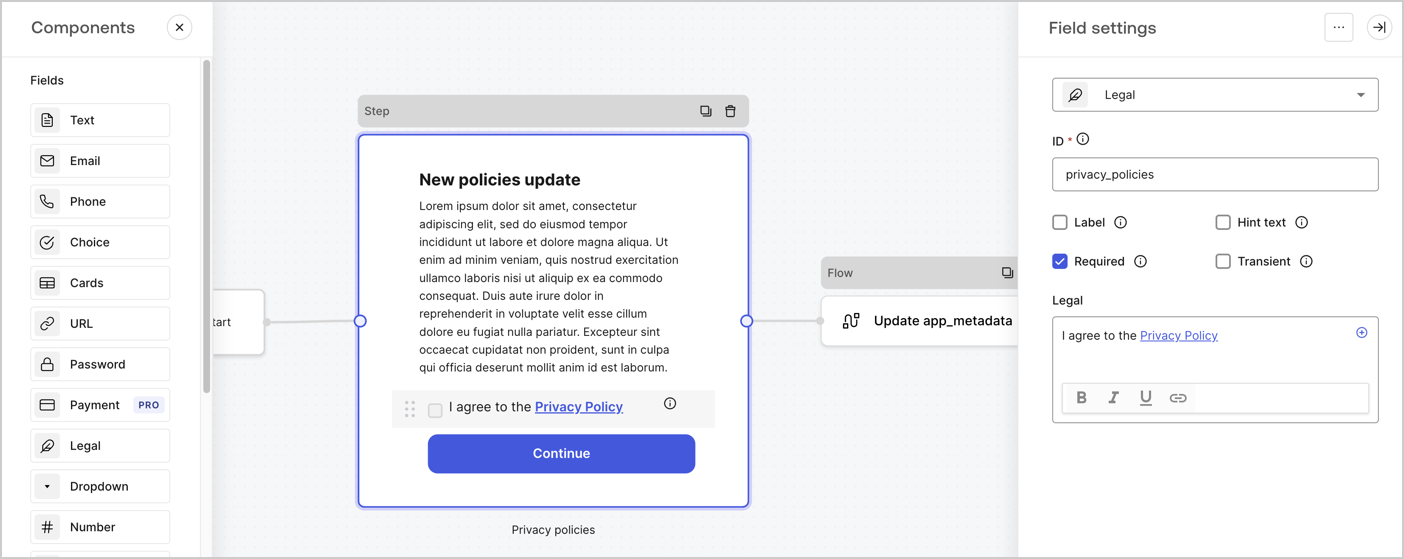
Le nœud d’étape est l’interface graphique visible par les utilisateurs. Ajoutez des [champs](/docs/fr-CA/fr-ca/customize/forms/nodes-and-components) au nœud d’étape pour recueillir la nouvelle valeur d’acceptation de l’accord en suivant ces étapes :

1. Faites glisser un champ **Rich text (Texte enrichi)** depuis le **Components menu (Menu composants)** dans le nœud **d’étape**.

   * **Rich text (Texte enrichi)**: Saisissez une description des mises à jour de vos politiques de confidentialité.
   * Sélectionnez **Save (Enregistrer)**.
2. Faites glisser un champ **Legal (Légal)** dans le nœud **d’étape** .

   * **Identification** : Saisissez `privacy_policies`.
   * **Obligatoire** : Cochez la case.
   * **Légal** : Saisissez `J’accepte la politique de confidentialité`.
   * Sélectionnez **Save (Enregistrer)**.
3. Sélectionnez **Publish (Publier)** pour enregistrer.
<Frame>
  <img src="https://mintcdn.com/generaltranslationinc/op3qeo8SlxWCJLLV/docs/images/fr-ca/cdy7uua7fh8z/59zFFjQjAnjogkc2QGIqqJ/0ad66b1b636544122aa4e65968b76c2c/privacy-policy-step-node.png?fit=max&auto=format&n=op3qeo8SlxWCJLLV&q=85&s=da18b974d9a11c52c05a9ddb6905a7e3" alt="Dashboard > Actions > Forms > Use case privacy policy step node" data-og-width="1404" width="1404" data-og-height="559" height="559" data-path="docs/images/fr-ca/cdy7uua7fh8z/59zFFjQjAnjogkc2QGIqqJ/0ad66b1b636544122aa4e65968b76c2c/privacy-policy-step-node.png" data-optimize="true" data-opv="3" srcset="https://mintcdn.com/generaltranslationinc/op3qeo8SlxWCJLLV/docs/images/fr-ca/cdy7uua7fh8z/59zFFjQjAnjogkc2QGIqqJ/0ad66b1b636544122aa4e65968b76c2c/privacy-policy-step-node.png?w=280&fit=max&auto=format&n=op3qeo8SlxWCJLLV&q=85&s=c0b573fd2e10763cc7120f4442f495ba 280w, https://mintcdn.com/generaltranslationinc/op3qeo8SlxWCJLLV/docs/images/fr-ca/cdy7uua7fh8z/59zFFjQjAnjogkc2QGIqqJ/0ad66b1b636544122aa4e65968b76c2c/privacy-policy-step-node.png?w=560&fit=max&auto=format&n=op3qeo8SlxWCJLLV&q=85&s=ac93f01929dc3d148c668fe25d540bdb 560w, https://mintcdn.com/generaltranslationinc/op3qeo8SlxWCJLLV/docs/images/fr-ca/cdy7uua7fh8z/59zFFjQjAnjogkc2QGIqqJ/0ad66b1b636544122aa4e65968b76c2c/privacy-policy-step-node.png?w=840&fit=max&auto=format&n=op3qeo8SlxWCJLLV&q=85&s=c7121af7d5db0865151722309008ec5f 840w, https://mintcdn.com/generaltranslationinc/op3qeo8SlxWCJLLV/docs/images/fr-ca/cdy7uua7fh8z/59zFFjQjAnjogkc2QGIqqJ/0ad66b1b636544122aa4e65968b76c2c/privacy-policy-step-node.png?w=1100&fit=max&auto=format&n=op3qeo8SlxWCJLLV&q=85&s=f4b290f3b6293b915268263de23109bc 1100w, https://mintcdn.com/generaltranslationinc/op3qeo8SlxWCJLLV/docs/images/fr-ca/cdy7uua7fh8z/59zFFjQjAnjogkc2QGIqqJ/0ad66b1b636544122aa4e65968b76c2c/privacy-policy-step-node.png?w=1650&fit=max&auto=format&n=op3qeo8SlxWCJLLV&q=85&s=858dc5d02374009b2798e0172d6ef8f0 1650w, https://mintcdn.com/generaltranslationinc/op3qeo8SlxWCJLLV/docs/images/fr-ca/cdy7uua7fh8z/59zFFjQjAnjogkc2QGIqqJ/0ad66b1b636544122aa4e65968b76c2c/privacy-policy-step-node.png?w=2500&fit=max&auto=format&n=op3qeo8SlxWCJLLV&q=85&s=eb0fa5ffe078386a0c39ab0cd62a2ad2 2500w" />
</Frame>

<div id="configure-the-flow-node">
  ### Configurez le nœud Flow
</div>

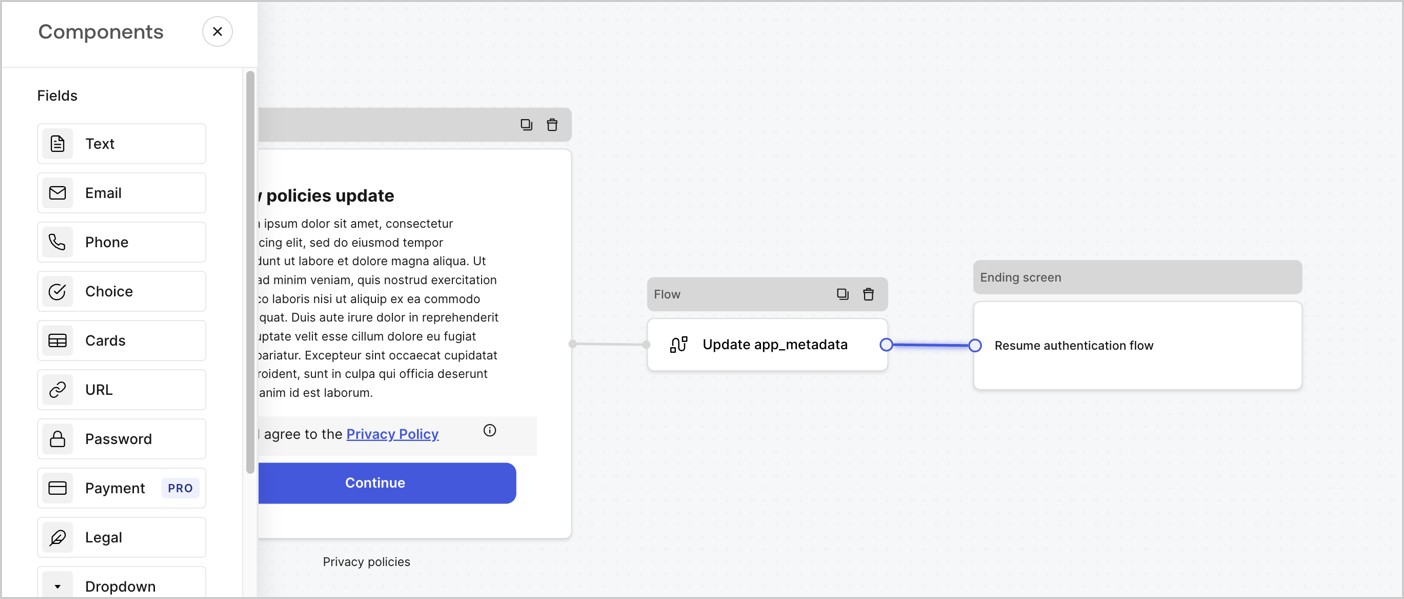
Ajoutez un node **Flow** après le nœud **d’étape** pour mettre à jour les `app_metadata` et reprendre le flux d’authentification en suivant ces étapes :

1. Sélectionnez **Flow (Flux)** en bas de Form Editor (Éditeur de formulaire).
2. Supprimez le lien existant entre les nœuds **Step (Étape)** et **Ending Screen (Écran de fin)**.
3. Sélectionnez le nouveau **Flow (Flux)** > **Click to add a flow (Cliquer pour ajouter un flux)** > **Create a new flow (Créer un nouveau flux).**

   * Entrez `Update app_metadata (Mettre à jour app_metadata)` dans le champ **Name (Nom)**.
   * Sélectionnez **Create (Créer)**.
   * Sélectionnez **Save (Enregistrer)**.
4. Liez le nœud **Flow (Flux)** aux nœuds **Step (Étape)** et **Ending Screen (Écran de fin)** comme illustré ci-dessous.
5. Sélectionnez **Publish (Publier)** pour enregistrer.
<Frame>
  <img src="https://mintcdn.com/generaltranslationinc/9lDbWecp3mLK18lk/docs/images/fr-ca/cdy7uua7fh8z/6YIkzm7SrpM9LW76AXuRzh/353c518fe82bbaa440836da1d83596d6/link-policies.png?fit=max&auto=format&n=9lDbWecp3mLK18lk&q=85&s=2553068f45733e40dc5d97230d9d88c7" alt="Dashboard > Actions > Forms > Form" data-og-width="1404" width="1404" data-og-height="599" height="599" data-path="docs/images/fr-ca/cdy7uua7fh8z/6YIkzm7SrpM9LW76AXuRzh/353c518fe82bbaa440836da1d83596d6/link-policies.png" data-optimize="true" data-opv="3" srcset="https://mintcdn.com/generaltranslationinc/9lDbWecp3mLK18lk/docs/images/fr-ca/cdy7uua7fh8z/6YIkzm7SrpM9LW76AXuRzh/353c518fe82bbaa440836da1d83596d6/link-policies.png?w=280&fit=max&auto=format&n=9lDbWecp3mLK18lk&q=85&s=d19a62db1945cedd7be7958b83a2643b 280w, https://mintcdn.com/generaltranslationinc/9lDbWecp3mLK18lk/docs/images/fr-ca/cdy7uua7fh8z/6YIkzm7SrpM9LW76AXuRzh/353c518fe82bbaa440836da1d83596d6/link-policies.png?w=560&fit=max&auto=format&n=9lDbWecp3mLK18lk&q=85&s=fd76b5f2be8422e72a027517d9b6bf51 560w, https://mintcdn.com/generaltranslationinc/9lDbWecp3mLK18lk/docs/images/fr-ca/cdy7uua7fh8z/6YIkzm7SrpM9LW76AXuRzh/353c518fe82bbaa440836da1d83596d6/link-policies.png?w=840&fit=max&auto=format&n=9lDbWecp3mLK18lk&q=85&s=2389cdec72f0b94f404f216211f0ee0f 840w, https://mintcdn.com/generaltranslationinc/9lDbWecp3mLK18lk/docs/images/fr-ca/cdy7uua7fh8z/6YIkzm7SrpM9LW76AXuRzh/353c518fe82bbaa440836da1d83596d6/link-policies.png?w=1100&fit=max&auto=format&n=9lDbWecp3mLK18lk&q=85&s=82f44bef8ebad71f493eae2f18ae1c3c 1100w, https://mintcdn.com/generaltranslationinc/9lDbWecp3mLK18lk/docs/images/fr-ca/cdy7uua7fh8z/6YIkzm7SrpM9LW76AXuRzh/353c518fe82bbaa440836da1d83596d6/link-policies.png?w=1650&fit=max&auto=format&n=9lDbWecp3mLK18lk&q=85&s=eaf146cd325cab4ce77c06fe9b7ad658 1650w, https://mintcdn.com/generaltranslationinc/9lDbWecp3mLK18lk/docs/images/fr-ca/cdy7uua7fh8z/6YIkzm7SrpM9LW76AXuRzh/353c518fe82bbaa440836da1d83596d6/link-policies.png?w=2500&fit=max&auto=format&n=9lDbWecp3mLK18lk&q=85&s=dde6fe31aea4ba9b5463c257535feaa0 2500w" />
</Frame>

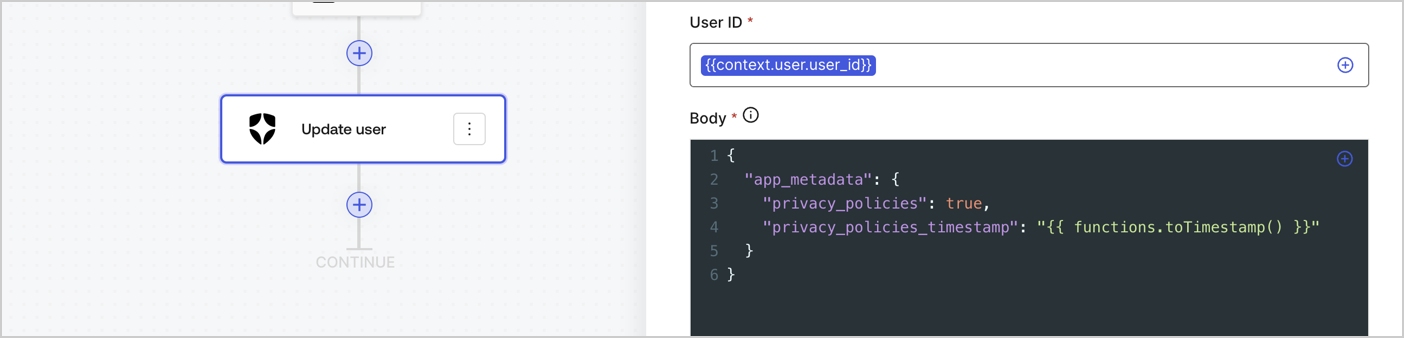
Ajoutez une action de mise à jour d’utilisateur Auth0 au flux en suivant ces étapes :

1. Sélectionnez le **fluxUpdate app\_metadata (Mise à jour de app\_metadata)** > **Edit flow (Modifier le flux)** pour ouvrir l’éditeur de flux dans un nouvel onglet.
2. Sous l’Action **Start (Démarrage)**, sélectionnez l’icône **+** pour ajouter une Action **Update user (Mise à jour de l’utilisateur)** . Remplissez les champs ci-dessous, puis sélectionnez **Save (Enregistrer)** pour continuer.

   * **Connection** : dans la liste déroulante, sélectionnez la connexion au coffre-fort de votre application de communication entre machines.

   * **User ID** (ID utilisateur) : Saisissez `{{context.user.user_id}}`.

   * **Corps** : Copiez et collez le code suivant pour mettre à jour les app\_metadata avec les propriétés privacy\_policies et privacy\_policies\_timestamp.

     ```
     {
       "app_metadata": {
         "privacy_policies": true,
         "privacy_policies_timestamp": "{{ functions.toTimestamp() }}"
       }
     }
     ```

   * Sélectionnez **Save (Enregistrer)**.
3. Sélectionnez **Publish (Publier)** pour enregistrer.
<Frame>
  <img src="https://mintcdn.com/generaltranslationinc/g_5uXNJ2fsuQgUNN/docs/images/fr-ca/cdy7uua7fh8z/CvMNIwWrOUwaFW4X3G28p/1fb70ae57a20749d9ffaaba8dc0b7e26/update-user-privacy.png?fit=max&auto=format&n=g_5uXNJ2fsuQgUNN&q=85&s=868a63f4c6507519a931edb06648cad6" alt="Dashboard > Actions > Forms > User case privacy policy code" data-og-width="1404" width="1404" data-og-height="338" height="338" data-path="docs/images/fr-ca/cdy7uua7fh8z/CvMNIwWrOUwaFW4X3G28p/1fb70ae57a20749d9ffaaba8dc0b7e26/update-user-privacy.png" data-optimize="true" data-opv="3" srcset="https://mintcdn.com/generaltranslationinc/g_5uXNJ2fsuQgUNN/docs/images/fr-ca/cdy7uua7fh8z/CvMNIwWrOUwaFW4X3G28p/1fb70ae57a20749d9ffaaba8dc0b7e26/update-user-privacy.png?w=280&fit=max&auto=format&n=g_5uXNJ2fsuQgUNN&q=85&s=fb5e2c87241f47e93a2ccaeb06b8ae02 280w, https://mintcdn.com/generaltranslationinc/g_5uXNJ2fsuQgUNN/docs/images/fr-ca/cdy7uua7fh8z/CvMNIwWrOUwaFW4X3G28p/1fb70ae57a20749d9ffaaba8dc0b7e26/update-user-privacy.png?w=560&fit=max&auto=format&n=g_5uXNJ2fsuQgUNN&q=85&s=75ed567d5d47a30f174da2923c596f71 560w, https://mintcdn.com/generaltranslationinc/g_5uXNJ2fsuQgUNN/docs/images/fr-ca/cdy7uua7fh8z/CvMNIwWrOUwaFW4X3G28p/1fb70ae57a20749d9ffaaba8dc0b7e26/update-user-privacy.png?w=840&fit=max&auto=format&n=g_5uXNJ2fsuQgUNN&q=85&s=54d466db9464b495c35e730adfc483f6 840w, https://mintcdn.com/generaltranslationinc/g_5uXNJ2fsuQgUNN/docs/images/fr-ca/cdy7uua7fh8z/CvMNIwWrOUwaFW4X3G28p/1fb70ae57a20749d9ffaaba8dc0b7e26/update-user-privacy.png?w=1100&fit=max&auto=format&n=g_5uXNJ2fsuQgUNN&q=85&s=ec1cfb359ce59681a186646cdd1343ad 1100w, https://mintcdn.com/generaltranslationinc/g_5uXNJ2fsuQgUNN/docs/images/fr-ca/cdy7uua7fh8z/CvMNIwWrOUwaFW4X3G28p/1fb70ae57a20749d9ffaaba8dc0b7e26/update-user-privacy.png?w=1650&fit=max&auto=format&n=g_5uXNJ2fsuQgUNN&q=85&s=66e3c2ea500b0c252d9614263327c9e5 1650w, https://mintcdn.com/generaltranslationinc/g_5uXNJ2fsuQgUNN/docs/images/fr-ca/cdy7uua7fh8z/CvMNIwWrOUwaFW4X3G28p/1fb70ae57a20749d9ffaaba8dc0b7e26/update-user-privacy.png?w=2500&fit=max&auto=format&n=g_5uXNJ2fsuQgUNN&q=85&s=6c261ac0e14654c69203e1d1d16a2501 2500w" />
</Frame>

<Callout icon="file-lines" color="#0EA5E9" iconType="regular">
  Le flux **Update app\_metadata** ajoute une valeur `privacy_policies true` à l’objet `app_metadata` et génère également un horodatage à l’aide d’une [fonction d’assistance](/docs/fr-CA/fr-ca/customize/forms/variables)
</Callout>

<div id="retrieve-the-form-render-code">
  ## Récupérer le code de rendu du formulaire
</div>

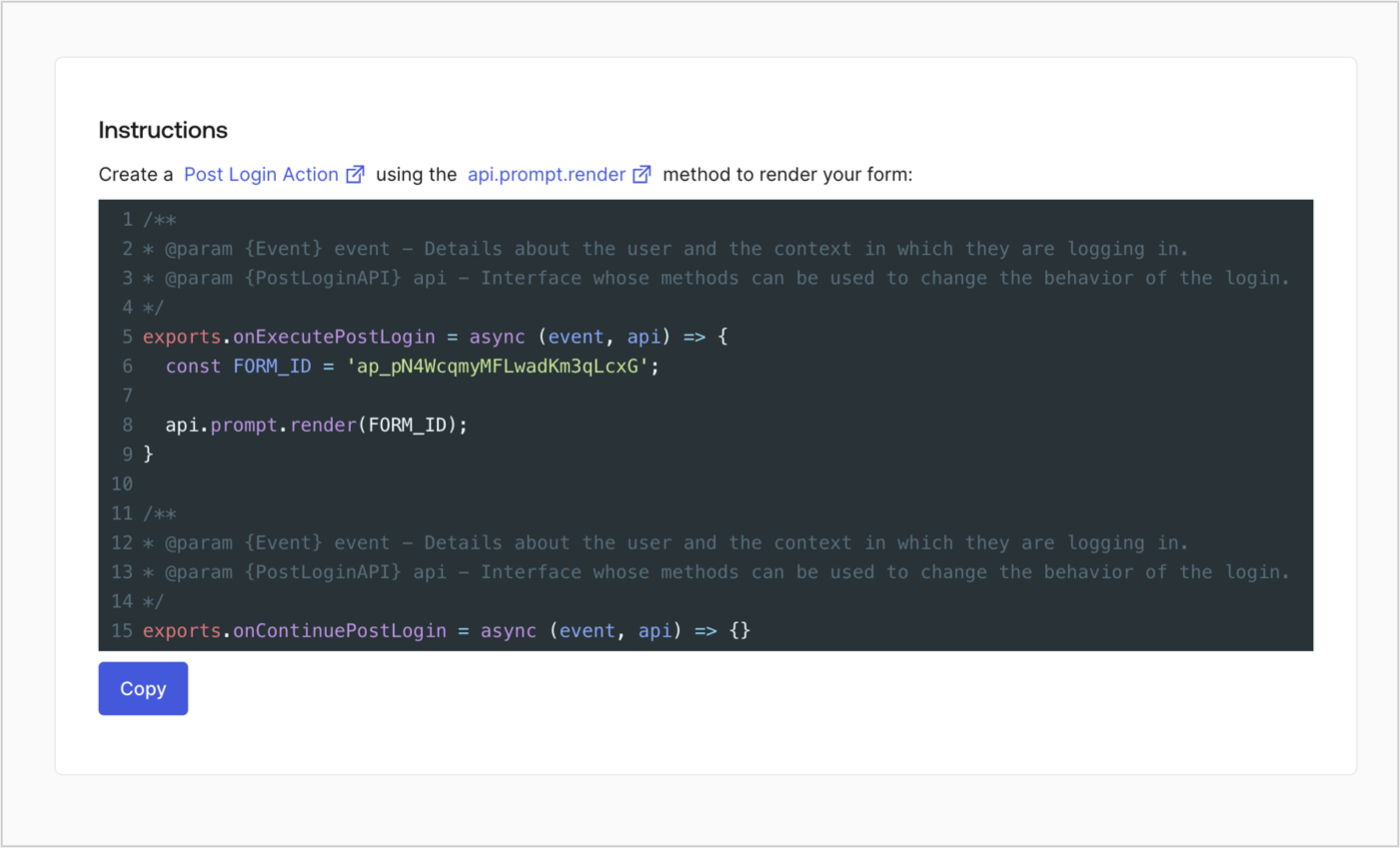
Récupérez votre code de rendu du formulaire pour afficher visuellement le formulaire avec une Action post-connexion personnalisée en suivant ces étapes :

* Dans l’éditeur de formulaire, sélectionnez **\<> Render (Rendre)**.
* Sélectionnez **Copy (Copier)**.
<Frame>
  <img src="https://mintcdn.com/generaltranslationinc/I3Fs4t2ino3YdzfZ/docs/images/fr-ca/cdy7uua7fh8z/2EIUzc539sq9lwoTKbjoJv/496a864c0fc44a782c9cadca119dbfb0/embed.png?fit=max&auto=format&n=I3Fs4t2ino3YdzfZ&q=85&s=a2f2d20cce8bffbe7983b345ce78fa9e" alt="Dashboard > Actions > Forms > Form > Embed" data-og-width="1400" width="1400" data-og-height="848" height="848" data-path="docs/images/fr-ca/cdy7uua7fh8z/2EIUzc539sq9lwoTKbjoJv/496a864c0fc44a782c9cadca119dbfb0/embed.png" data-optimize="true" data-opv="3" srcset="https://mintcdn.com/generaltranslationinc/I3Fs4t2ino3YdzfZ/docs/images/fr-ca/cdy7uua7fh8z/2EIUzc539sq9lwoTKbjoJv/496a864c0fc44a782c9cadca119dbfb0/embed.png?w=280&fit=max&auto=format&n=I3Fs4t2ino3YdzfZ&q=85&s=2b3730c9b1df876977fe26389b310c78 280w, https://mintcdn.com/generaltranslationinc/I3Fs4t2ino3YdzfZ/docs/images/fr-ca/cdy7uua7fh8z/2EIUzc539sq9lwoTKbjoJv/496a864c0fc44a782c9cadca119dbfb0/embed.png?w=560&fit=max&auto=format&n=I3Fs4t2ino3YdzfZ&q=85&s=34bee3dc6ca48f15d3c51c1fa6dbae82 560w, https://mintcdn.com/generaltranslationinc/I3Fs4t2ino3YdzfZ/docs/images/fr-ca/cdy7uua7fh8z/2EIUzc539sq9lwoTKbjoJv/496a864c0fc44a782c9cadca119dbfb0/embed.png?w=840&fit=max&auto=format&n=I3Fs4t2ino3YdzfZ&q=85&s=66eaffae7b5fabe7515f4522adff61d6 840w, https://mintcdn.com/generaltranslationinc/I3Fs4t2ino3YdzfZ/docs/images/fr-ca/cdy7uua7fh8z/2EIUzc539sq9lwoTKbjoJv/496a864c0fc44a782c9cadca119dbfb0/embed.png?w=1100&fit=max&auto=format&n=I3Fs4t2ino3YdzfZ&q=85&s=1881e11ad5611b578921e212357efd15 1100w, https://mintcdn.com/generaltranslationinc/I3Fs4t2ino3YdzfZ/docs/images/fr-ca/cdy7uua7fh8z/2EIUzc539sq9lwoTKbjoJv/496a864c0fc44a782c9cadca119dbfb0/embed.png?w=1650&fit=max&auto=format&n=I3Fs4t2ino3YdzfZ&q=85&s=36715e1d3425120cdf328a44cad8368e 1650w, https://mintcdn.com/generaltranslationinc/I3Fs4t2ino3YdzfZ/docs/images/fr-ca/cdy7uua7fh8z/2EIUzc539sq9lwoTKbjoJv/496a864c0fc44a782c9cadca119dbfb0/embed.png?w=2500&fit=max&auto=format&n=I3Fs4t2ino3YdzfZ&q=85&s=3f477834fe8af631fd7ef61445d67f93 2500w" />
</Frame>

<div id="create-a-post-login-action">
  ## Créer une action post-connexion
</div>

Créez une action post-connexion pour afficher votre formulaire en suivant ces étapes :

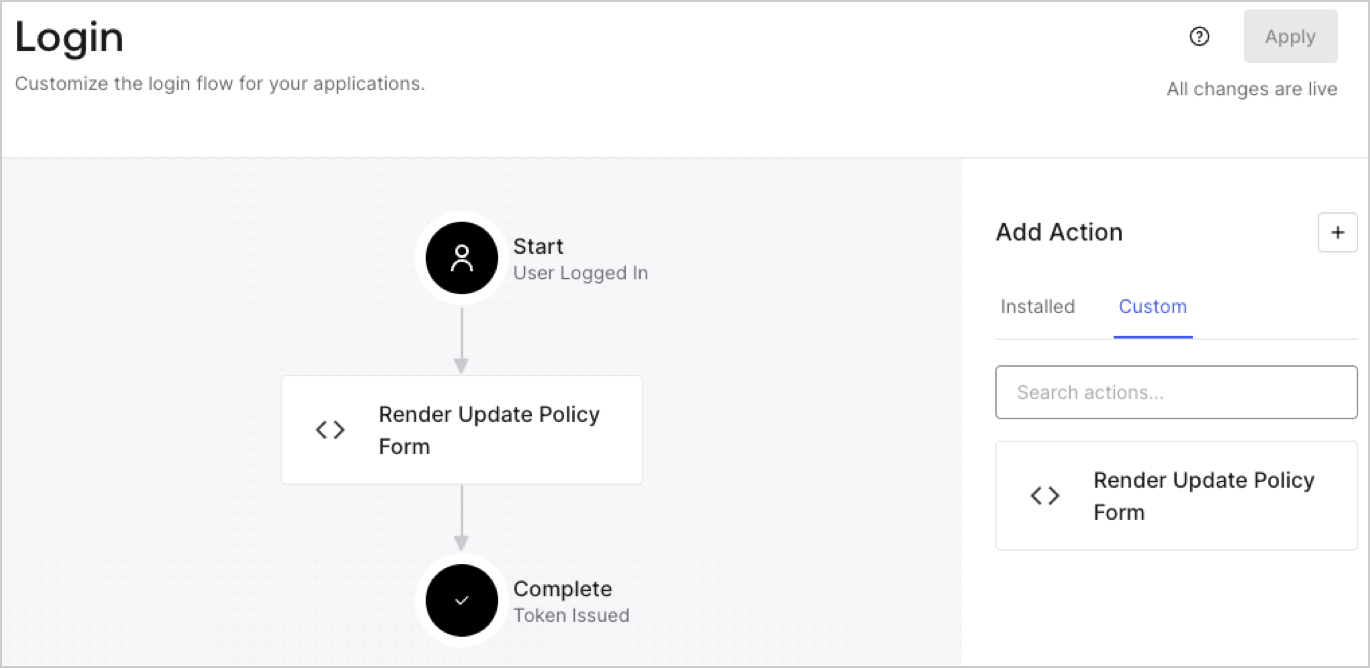
1. Naviguez vers **Auth0 Dashboard > Actions > Flows (Flux) > Login (Connexion).**
2. Sélectionnez l’icône **+** et choisissez **Build from scratch (Construire à partir de zéro)**:

   * **Name (Nom)** : Saisissez `Render Update Policy Form (Formulaire de politique de mise à jour du rendu)`.
   * **Déclencheur** : Sélectionnez `Login / Post Login (Connexion / Post-connexion)`.
   * **Runtime (Temps d’exécution)** : Sélectionnez la version recommandée.
3. Sélectionnez **Create (Créer)**.

Pour configurer l’action post-connexion.

1. Supprimez le code existant dans l’éditeur de code.

2. Collez le code de rendu du formulaire dans l’éditeur de code.

3. Modifiez le code pour définir la logique conditionnelle d’affichage du formulaire.

   ```javascript lines theme={null}
   /**
   * @param {Event} event - Details about the user and the context in which they are logging in.
   * @param {PostLoginAPI} api - Interface whose methods can be used to change the behavior of the login.
   */
   exports.onExecutePostLogin = async (event, api) => {
     const FORM_ID = 'REPLACE_WITH_YOUR_FORM_ID';

     if (event.user.app_metadata.privacy_policies !== true) {
       api.prompt.render(FORM_ID);
     }
   }

   exports.onContinuePostLogin = async (event, api) => { }
   ```

   <Callout icon="file-lines" color="#0EA5E9" iconType="regular">
     L’exemple de code ci-dessus affiche le formulaire lorsque la propriété `privacy_policies` ne se trouve pas dans les métadonnées de l’application.
   </Callout>

4. Sélectionnez **Deploy (Déployer)**.

5. Glissez et déposez l’Action **Render Update Policy Form (Formulaire de mise à jour de la politique de rendu)** dans le flux de **Login (Connexion)** .
   <Frame>
     <img src="https://mintcdn.com/generaltranslationinc/2HoSdIVVjMeJSj5n/docs/images/fr-ca/cdy7uua7fh8z/5TOwDgevZsBqd7yZynUYWU/41ca909dc3007aed4f40ff794a05efa5/postlogin.png?fit=max&auto=format&n=2HoSdIVVjMeJSj5n&q=85&s=b7f261a4b6609936c0e36a2a42de326d" alt="Dashboard > Forms > Use Case > Render update policy form login action" data-og-width="1370" width="1370" data-og-height="668" height="668" data-path="docs/images/fr-ca/cdy7uua7fh8z/5TOwDgevZsBqd7yZynUYWU/41ca909dc3007aed4f40ff794a05efa5/postlogin.png" data-optimize="true" data-opv="3" srcset="https://mintcdn.com/generaltranslationinc/2HoSdIVVjMeJSj5n/docs/images/fr-ca/cdy7uua7fh8z/5TOwDgevZsBqd7yZynUYWU/41ca909dc3007aed4f40ff794a05efa5/postlogin.png?w=280&fit=max&auto=format&n=2HoSdIVVjMeJSj5n&q=85&s=8c69916f9d286e54451f2c74d727d8cb 280w, https://mintcdn.com/generaltranslationinc/2HoSdIVVjMeJSj5n/docs/images/fr-ca/cdy7uua7fh8z/5TOwDgevZsBqd7yZynUYWU/41ca909dc3007aed4f40ff794a05efa5/postlogin.png?w=560&fit=max&auto=format&n=2HoSdIVVjMeJSj5n&q=85&s=1bf897e2f813fe042f8f5d1119f9239f 560w, https://mintcdn.com/generaltranslationinc/2HoSdIVVjMeJSj5n/docs/images/fr-ca/cdy7uua7fh8z/5TOwDgevZsBqd7yZynUYWU/41ca909dc3007aed4f40ff794a05efa5/postlogin.png?w=840&fit=max&auto=format&n=2HoSdIVVjMeJSj5n&q=85&s=75af7db7c96d1de09cdd59aefa5de7ec 840w, https://mintcdn.com/generaltranslationinc/2HoSdIVVjMeJSj5n/docs/images/fr-ca/cdy7uua7fh8z/5TOwDgevZsBqd7yZynUYWU/41ca909dc3007aed4f40ff794a05efa5/postlogin.png?w=1100&fit=max&auto=format&n=2HoSdIVVjMeJSj5n&q=85&s=3d55354ea8348baa91b14a19186a32bc 1100w, https://mintcdn.com/generaltranslationinc/2HoSdIVVjMeJSj5n/docs/images/fr-ca/cdy7uua7fh8z/5TOwDgevZsBqd7yZynUYWU/41ca909dc3007aed4f40ff794a05efa5/postlogin.png?w=1650&fit=max&auto=format&n=2HoSdIVVjMeJSj5n&q=85&s=4a243137bbae81a14e2404b73ca97a38 1650w, https://mintcdn.com/generaltranslationinc/2HoSdIVVjMeJSj5n/docs/images/fr-ca/cdy7uua7fh8z/5TOwDgevZsBqd7yZynUYWU/41ca909dc3007aed4f40ff794a05efa5/postlogin.png?w=2500&fit=max&auto=format&n=2HoSdIVVjMeJSj5n&q=85&s=70d6daca9d8c6534feb6dac78122ed95 2500w" />
   </Frame>

6. Sélectionnez **Apply (Appliquer).**

<div id="test-implementation">
  ### Test de mise en œuvre
</div>

Testez la mise en œuvre en suivant les étapes ci-dessous :

1. Se connecter avec un utilisateur existant dont l’attribut `privacy_policies` de `app_metadata` n’a pas de valeur.
2. L’action post-connexion dans le flux de connexion rendra le formulaire et demandera l’approbation.
3. Sélectionnez **Auth0 Dashboard > User Management (Gestion des utilisateurs) > Users (Utilisateurs),** localisez l’utilisateur et vérifiez que l’attribut `app_metadata``privacy_policies` contient une valeur `true` et un horodatage.
