> ## Documentation Index
> Fetch the complete documentation index at: https://auth0.generaltranslation.app/llms.txt
> Use this file to discover all available pages before exploring further.

# WhatsApp

> Découvrez comment configurer vos actions de flux WhatsApp pour envoyer des messages.

<div id="configure-your-vault-connection">
  ## Configurer la connexion à votre coffre-fort
</div>

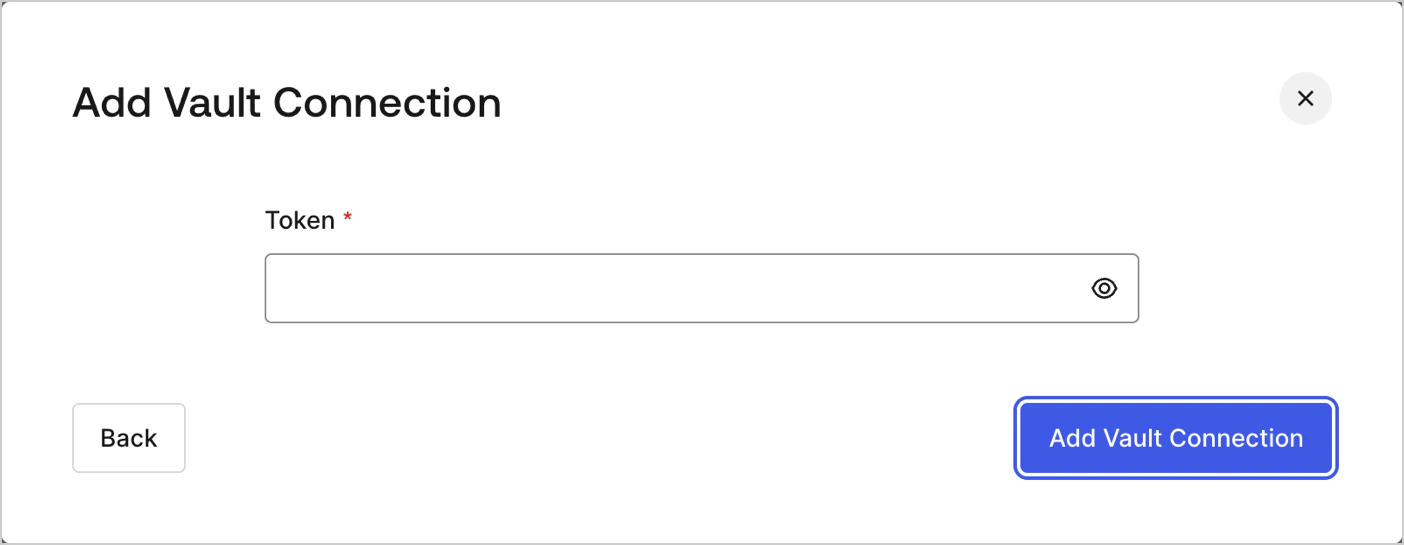
Pour configurer une connexion au coffre-fort pour vos actions WhatsApp, vous aurez besoin d’un **jeton** :

<Frame>
  <img src="https://mintcdn.com/generaltranslationinc/BynIOvi9RMYsRJQw/docs/images/fr-ca/cdy7uua7fh8z/1Qevi3V1UbkUjb6c51x6R4/44590932bdced6e50afa436835c7cb15/whatsapp-vault-connection.png?fit=max&auto=format&n=BynIOvi9RMYsRJQw&q=85&s=ff7dc8f3f4ab2ba98541400db3b6ed77" alt="Dashboard > Actions > Forms > Flows > actions > WhatsApp" data-og-width="1404" width="1404" data-og-height="545" height="545" data-path="docs/images/fr-ca/cdy7uua7fh8z/1Qevi3V1UbkUjb6c51x6R4/44590932bdced6e50afa436835c7cb15/whatsapp-vault-connection.png" data-optimize="true" data-opv="3" srcset="https://mintcdn.com/generaltranslationinc/BynIOvi9RMYsRJQw/docs/images/fr-ca/cdy7uua7fh8z/1Qevi3V1UbkUjb6c51x6R4/44590932bdced6e50afa436835c7cb15/whatsapp-vault-connection.png?w=280&fit=max&auto=format&n=BynIOvi9RMYsRJQw&q=85&s=0c991a612f2baea97e3806cc4570dc47 280w, https://mintcdn.com/generaltranslationinc/BynIOvi9RMYsRJQw/docs/images/fr-ca/cdy7uua7fh8z/1Qevi3V1UbkUjb6c51x6R4/44590932bdced6e50afa436835c7cb15/whatsapp-vault-connection.png?w=560&fit=max&auto=format&n=BynIOvi9RMYsRJQw&q=85&s=8b2ca508b63efe9b7d7f296bedac2351 560w, https://mintcdn.com/generaltranslationinc/BynIOvi9RMYsRJQw/docs/images/fr-ca/cdy7uua7fh8z/1Qevi3V1UbkUjb6c51x6R4/44590932bdced6e50afa436835c7cb15/whatsapp-vault-connection.png?w=840&fit=max&auto=format&n=BynIOvi9RMYsRJQw&q=85&s=4c695115fbff634f9d8c76a91eb4bcc6 840w, https://mintcdn.com/generaltranslationinc/BynIOvi9RMYsRJQw/docs/images/fr-ca/cdy7uua7fh8z/1Qevi3V1UbkUjb6c51x6R4/44590932bdced6e50afa436835c7cb15/whatsapp-vault-connection.png?w=1100&fit=max&auto=format&n=BynIOvi9RMYsRJQw&q=85&s=18b1ac99df25afc359ebff69865fe4e3 1100w, https://mintcdn.com/generaltranslationinc/BynIOvi9RMYsRJQw/docs/images/fr-ca/cdy7uua7fh8z/1Qevi3V1UbkUjb6c51x6R4/44590932bdced6e50afa436835c7cb15/whatsapp-vault-connection.png?w=1650&fit=max&auto=format&n=BynIOvi9RMYsRJQw&q=85&s=55efcbcf4e9a2e1a868c564d13c619b1 1650w, https://mintcdn.com/generaltranslationinc/BynIOvi9RMYsRJQw/docs/images/fr-ca/cdy7uua7fh8z/1Qevi3V1UbkUjb6c51x6R4/44590932bdced6e50afa436835c7cb15/whatsapp-vault-connection.png?w=2500&fit=max&auto=format&n=BynIOvi9RMYsRJQw&q=85&s=998aa92fe095effcc6cd1b5eb42d746e 2500w" />
</Frame>

Pour savoir comment générer un jeton, lisez l’article [Utilisation de jetons d’autorisation pour WhatsApp](https://developers.facebook.com/blog/post/2022/12/05/auth-tokens/).

<div id="send-message">
  ## Envoyer un message
</div>

Envoie un message.

<Frame>
  <img src="https://mintcdn.com/generaltranslationinc/xKtz0qd7GsCqdbWa/docs/images/fr-ca/cdy7uua7fh8z/5zZPQw5KKYwBqxbR9jF1wZ/edba085456e3536f5167ff4c21bea77c/whatsapp.png?fit=max&auto=format&n=xKtz0qd7GsCqdbWa&q=85&s=75a3c77a570a87dc5e16c82f3444c271" alt="" width="1404" height="1094" data-path="docs/images/fr-ca/cdy7uua7fh8z/5zZPQw5KKYwBqxbR9jF1wZ/edba085456e3536f5167ff4c21bea77c/whatsapp.png" />
</Frame>

<div id="input-settings">
  ### Paramètres de saisie
</div>

<table class="table">
  <thead>
    <tr>
      <th><b>Paramètre</b></th>
      <th><b>Description</b></th>
    </tr>
  </thead>

  <tbody>
    <tr>
      <td>ID du téléphone expéditeur (obligatoire)</td>
      <td>L’ID du téléphone expéditeur se trouve dans les <a href="https://developers.facebook.com/apps">paramètres WhatsApp du Facebook Business Manager</a>. Notez qu’il ne s’agit pas d’un numéro de téléphone.</td>
    </tr>

    <tr>
      <td>Numéro de téléphone du destinataire (obligatoire)</td>
      <td>Le numéro de téléphone du destinataire au <a href="https://en.wikipedia.org/wiki/E.164">format E.164</a>.</td>
    </tr>

    <tr>
      <td>Type de message (obligatoire)</td>

      <td>
        Sélectionnez le type de message dans le menu déroulant. Voici les différents types :

        <ul>
          <li>Audio</li>
          <li>Contacts</li>
          <li>Document</li>
          <li>Image</li>
          <li>Interactive</li>
          <li>Localisation</li>
          <li>Autocollant</li>
          <li>Modèle</li>
          <li>Texte</li>
        </ul>
      </td>
    </tr>

    <tr>
      <td>Objet de message (obligatoire)</td>

      <td>
        Le contenu de l’objet de message varie selon le type de message sélectionné. Pour en savoir plus, consultez l’article <a href="https://developers.facebook.com/docs/whatsapp/cloud-api/reference/messages">Messages</a>.
      </td>
    </tr>
  </tbody>
</table>

<div id="output-object">
  ### Paramètres de sortie
</div>

Vous trouverez les codes d’état attendus dans la [documentation de Facebook](https://developers.facebook.com/docs/whatsapp/cloud-api/support/error-codes).