> ## Documentation Index
> Fetch the complete documentation index at: https://auth0.generaltranslation.app/llms.txt
> Use this file to discover all available pages before exploring further.
# クライアント証明書を使ってAD/LDAPコネクターの認証を構成する
> クライアント証明書を使って認証をセットアップする方法について説明します。
ユーザーの認証について、AD/LDAPコネクターもユーザーが自分のコンピューターやデバイスにインストールした証明書を使用できるようにします。
## クライアント証明書を有効にする
1. [[Auth0 Dashboard]>[Authentication(認証)]>[Enterprise(エンタープライズ)]>[Active Directory(AD)/LDAP]](https://manage.auth0.com/#/connections/enterprise/ad)に移動して、構成したい接続を選択します。
2. 設定で **[SSL certificate authentication(クライアントのSSL証明書認証を使用する)]** オプションを有効にします。
3. **[IP Ranges(IPアドレス範囲)]** フィールドにIPアドレスの範囲を入力します。指定されたIPアドレス範囲のユーザーだけが、クライアント証明書を使った認証を求められます。指定とは異なるIPアドレス範囲のユーザーは、ユーザー名とパスワードのフォームを使ったログインが求められます。
## 証明書を構成する
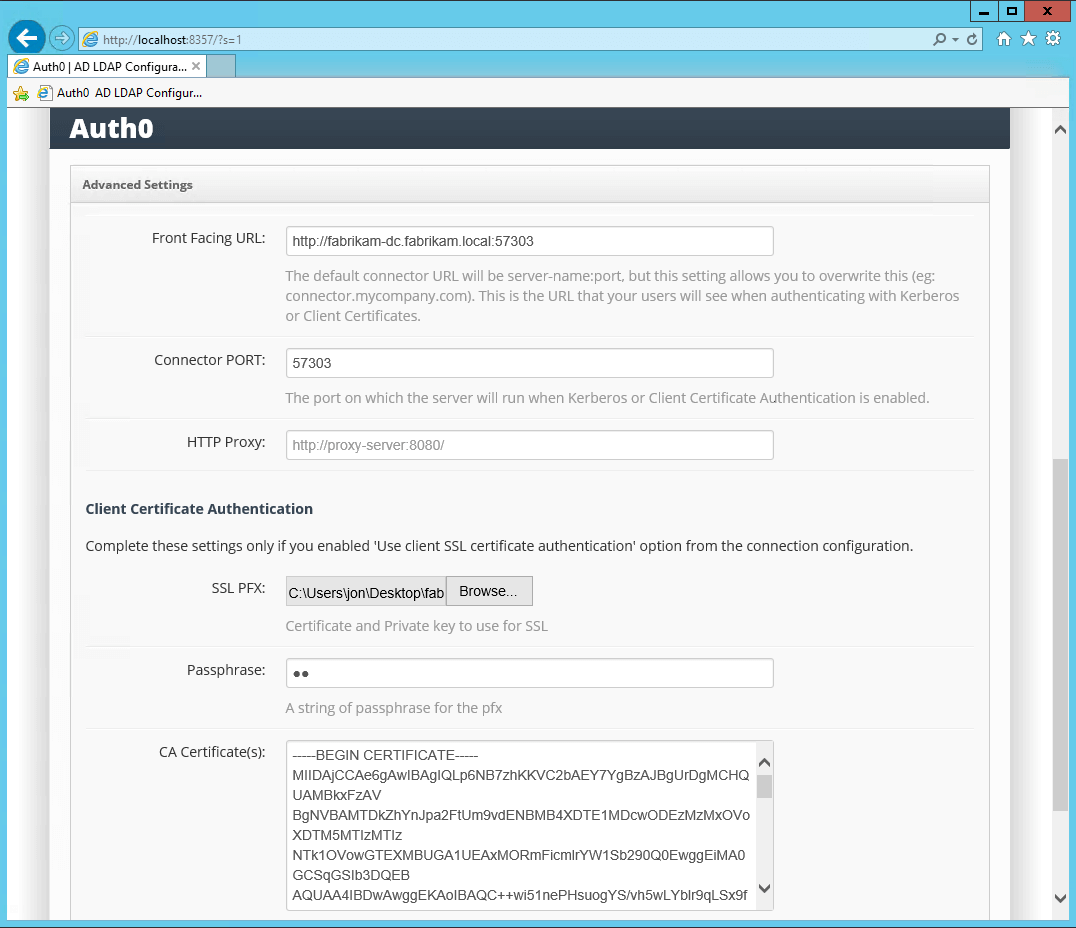
Auth0でAD/LDAP接続が構成されると、AD/LDAPコネクターで証明書を構成する必要があります。クライアント証明書に対応するには、以下が必要です。
* フロントエンドのURLのSSL証明書。エンドユーザーとコネクター間のやり取りにはHTTPSを使う必要があるためです。
* 1つ以上のCA証明書
* クライアント証明書を使った認証を必要とするユーザーのそれぞれについて、CAが署名したクライアント証明書
1. AD/LDAPコネクターに証明書をアップロードする前に、X.509証明書をbase64でエンコードします。Windows ServerではBase64またはCertUtilを使用します。詳細については、Base64decodeサイトの[Base64 Decode](https://www.base64decode.org/)、またはMicrosoftのドキュメンテーションにある[Certutil.exe](https://docs.microsoft.com/en-us/windows-server/administration/windows-commands/certutil#BKMK_encode)の説明を参照してください。
2. SSL証明書とCA証明書をAD/LDAPコネクターにアップロードします。
 3. テストするには、Windows上で **makecert.exe** (Windows SDKに含まれる)を使って自己署名のCA証明書とクライアント証明書を生成します。
```bash lines theme={null}
SET ClientCertificateName=jon
SET RootCertificateName=FabrikamRootCA
"C:\Program Files (x86)\Microsoft SDKs\Windows\v7.1A\Bin\makecert.exe" -sky exchange -r -n "CN=%RootCertificateName%" -pe -a sha1 -len 2048 -ss My "%RootCertificateName%.cer"
"C:\Program Files (x86)\Microsoft SDKs\Windows\v7.1A\Bin\makecert.exe" -n "CN=%ClientCertificateName%" -pe -sky exchange -m 96 -ss My -in "%RootCertificateName%" -is my -a sha1
```
クライアント証明書のサブジェクトは必ず`CN=AD_USERNAME`の形式(例:`CN=jon`)にします。
アプリケーションでユーザーがAD/LDAP接続を使ってサインインフローを始めると、以下が実行されます。
```js lines theme={null}
auth.signin({
popup: true,
connection: 'FabrikamAD',
scope: 'openid name email'
}, onLoginSuccess, onLoginFailed);
```
ユーザーのIPアドレスが指定のIPアドレス範囲にある場合は、クライアント証明書を使った認証が求められます。
3. テストするには、Windows上で **makecert.exe** (Windows SDKに含まれる)を使って自己署名のCA証明書とクライアント証明書を生成します。
```bash lines theme={null}
SET ClientCertificateName=jon
SET RootCertificateName=FabrikamRootCA
"C:\Program Files (x86)\Microsoft SDKs\Windows\v7.1A\Bin\makecert.exe" -sky exchange -r -n "CN=%RootCertificateName%" -pe -a sha1 -len 2048 -ss My "%RootCertificateName%.cer"
"C:\Program Files (x86)\Microsoft SDKs\Windows\v7.1A\Bin\makecert.exe" -n "CN=%ClientCertificateName%" -pe -sky exchange -m 96 -ss My -in "%RootCertificateName%" -is my -a sha1
```
クライアント証明書のサブジェクトは必ず`CN=AD_USERNAME`の形式(例:`CN=jon`)にします。
アプリケーションでユーザーがAD/LDAP接続を使ってサインインフローを始めると、以下が実行されます。
```js lines theme={null}
auth.signin({
popup: true,
connection: 'FabrikamAD',
scope: 'openid name email'
}, onLoginSuccess, onLoginFailed);
```
ユーザーのIPアドレスが指定のIPアドレス範囲にある場合は、クライアント証明書を使った認証が求められます。
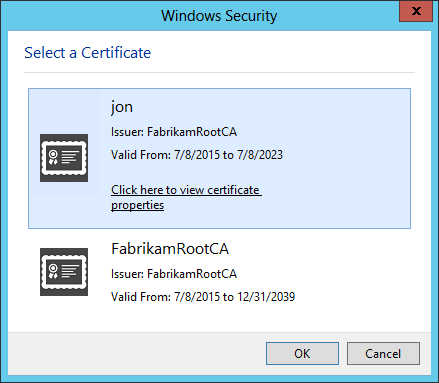 証明書を選択すると、以下のようにAD/LDAPコネクターが検証して、ユーザーがログインされます。