> ## Documentation Index
> Fetch the complete documentation index at: https://auth0.generaltranslation.app/llms.txt
> Use this file to discover all available pages before exploring further.
# AD/LDAPコネクターのインストールと構成
> AD/LDAPコネクターのインストール方法と構成方法について説明します。
export const InlineImage = ({src, alt = '', height = '1.6em'}) => {
return  ;
};
export const AuthCodeBlock = ({filename, icon, language, highlight, children}) => {
const [processedChildren, setProcessedChildren] = useState(children);
useEffect(() => {
let unsubscribe = null;
function init() {
unsubscribe = window.autorun(() => {
let processedChildren = children;
for (const [key, value] of window.rootStore.variableStore.values.entries()) {
processedChildren = processedChildren.replace(new RegExp(key, "g"), value);
}
setProcessedChildren(processedChildren);
});
}
if (window.rootStore) {
init();
} else {
window.addEventListener("adu:storeReady", init);
}
return () => {
window.removeEventListener("adu:storeReady", init);
unsubscribe?.();
};
}, [children]);
return
{processedChildren}
;
};
export const codeExample = `{
"LDAP_URL": "ldap://{yourLdapServerFqdn}",
"LDAP_BASE": "dc={yourDomain},dc=com",
"LDAP_BIND_USER":"{yourLdapUser}",
"LDAP_BIND_PASSWORD":"{yourLdapUserPassword}" //cleartextpassword
}`;
;
};
export const AuthCodeBlock = ({filename, icon, language, highlight, children}) => {
const [processedChildren, setProcessedChildren] = useState(children);
useEffect(() => {
let unsubscribe = null;
function init() {
unsubscribe = window.autorun(() => {
let processedChildren = children;
for (const [key, value] of window.rootStore.variableStore.values.entries()) {
processedChildren = processedChildren.replace(new RegExp(key, "g"), value);
}
setProcessedChildren(processedChildren);
});
}
if (window.rootStore) {
init();
} else {
window.addEventListener("adu:storeReady", init);
}
return () => {
window.removeEventListener("adu:storeReady", init);
unsubscribe?.();
};
}, [children]);
return
{processedChildren}
;
};
export const codeExample = `{
"LDAP_URL": "ldap://{yourLdapServerFqdn}",
"LDAP_BASE": "dc={yourDomain},dc=com",
"LDAP_BIND_USER":"{yourLdapUser}",
"LDAP_BIND_PASSWORD":"{yourLdapUserPassword}" //cleartextpassword
}`;
## 前提条件
* システムが[システム要件](/docs/ja-JP/ja-jp/authenticate/identity-providers/enterprise-identity-providers/active-directory-ldap/ad-ldap-connector/ad-ldap-connector-requirements)を満たしていることを確認します。
* [Git](https://git-scm.com/downloads)、[Node.js](https://nodejs.org)、および[npm](http://blog.npmjs.org/post/85484771375/how-to-install-npm)がすでにインストールされていることを確認します。
* ほとんどのプラットフォームでは、rootおよび/または管理者権限が必要です。
## Windows用のコネクターをインストールする
### インストーラーをダウンロードする
**Auth0 Active Directory/LDAP Connector for Windows** (MSI)ファイルをダウンロードします。
* [Windows用のAuth0 Active Directory/LDAPコネクター](https://cdn.auth0.com/adldap.msi) - Current version: 6.1.8 Checksum (SHA1): faf28ef46d1776802128e4f702bc755f3102abd7
### インストーラーを実行する
インストーラーを実行し、手順に従います。
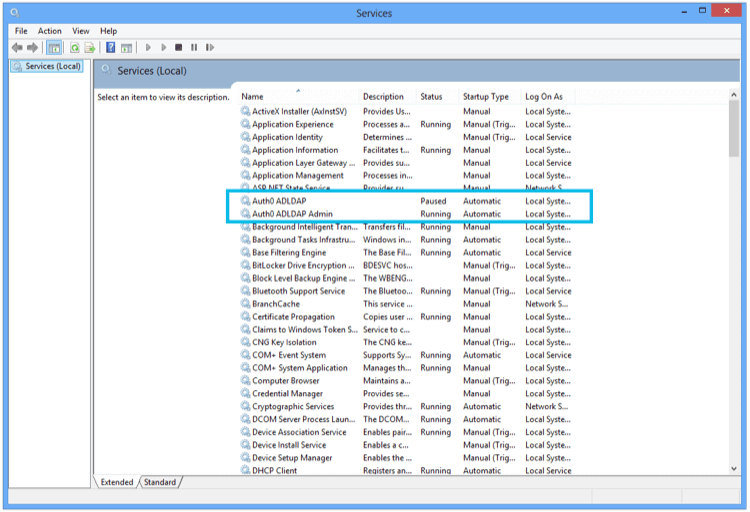
**AD/LDAPコネクター** がWindowsサービスとしてインストールされます。
### Auth0へのリンク
インストールが完了すると、ブラウザーにlocalhostを指す画面が表示されます。
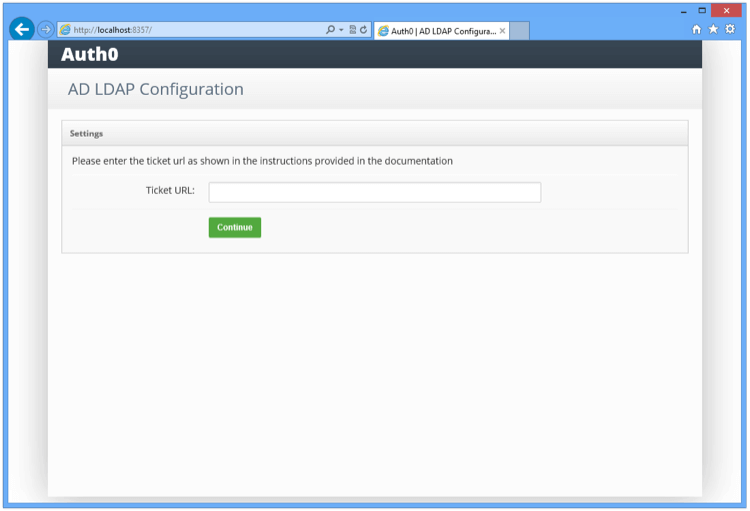 接続のプロビジョニングを行った際に提供された **チケットのURL** を入力します。 **チケットのURL** は、Auth0でこのコネクターを一意に識別します。コネクターはこれを使用してAuth0サーバーと通信し、自動的に構成を完了します。
### LDAPへのリンク
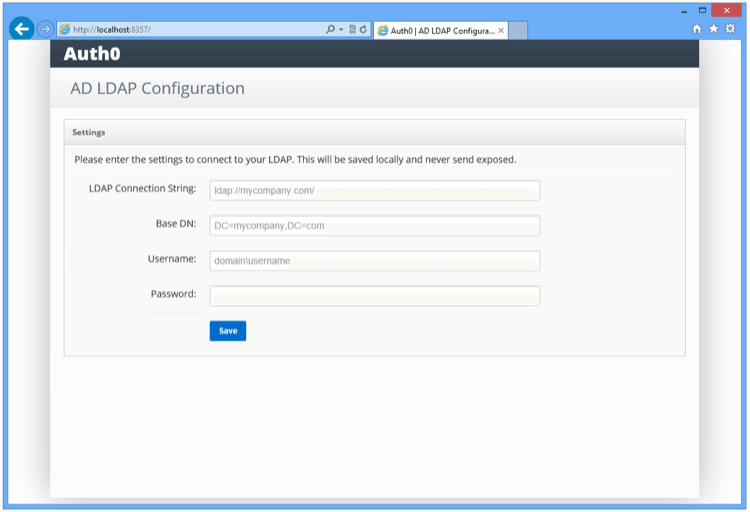
LDAPの設定を入力します。
| 設定 |
説明 |
| LDAP Connection String(LDAP接続文字列) |
たとえば、 `ldap://ldap.internal.contoso.com`です。これは、プロトコル + LDAPサーバーのドメイン名またはIPアドレスです。LDAPサーバーは、Active Directoryがインストールされたローカルのドメインコントローラーです。プロトコルは、`ldap`または`ldaps`です。`ldaps`を使用する必要がある場合は、現在のサーバーで証明書が有効なことを確認してください。 |
| Base DN(ベースDN) |
たとえば、`dc=contoso,dc=com`です。これは、コネクターが実行するクエリすべてに対するベースコンテナーです。 |
| Username(ユーザー名) |
たとえば、`cn=svcauth0,dc=services,dc=contoso,dc=com`です。クエリを実行するためのユーザーの完全な識別名です。 |
| Password(パスワード) |
ユーザーのパスワードです。 |
上記の情報を送信すると、コネクターは入力された情報を検証するために、一連のテストを実行します。結果はコンソール画面の **[Configuration Log(構成ログ)]** に表示されます。
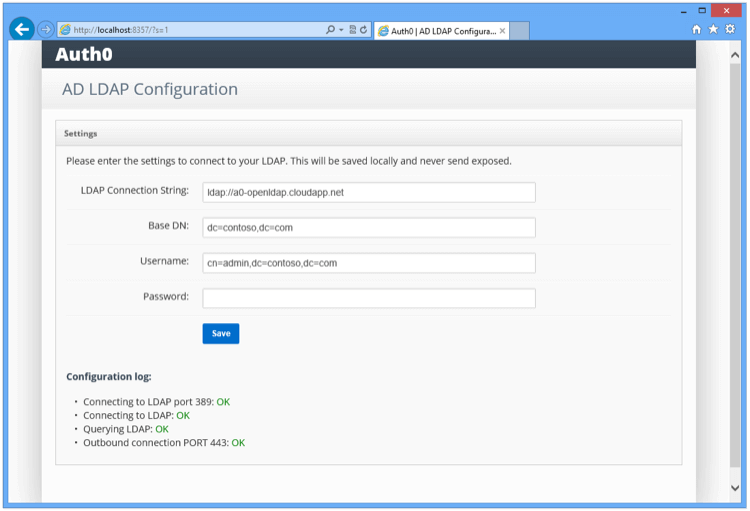 すべてのテストが緑(合格)であることを確認してください。
| テスト |
説明 |
トラブルシューティング |
| テスト1 |
LDAPサーバーおよび指定されているポートへのTCP接続確立を試行。 |
基本的なネットワーク接続と、接続を妨害している可能性があるファイアウォールの設定を確認します。 |
| テスト2 |
提供されたユーザー名とパスワードを使用してLDAPサーバーおよび指定されているポートのLDAPバインドを試行。 |
LDAP接続文字列、検索パス、ユーザー名、パスワードを確認します。 |
| テスト3 |
指定されたユーザー名の権限を確認するために、ディレクトリに対してLDAP検索を試行。 |
対象ディレクトリのユーザー名の権限を確認します。 |
| テスト4 |
Auth0サーバーへの接続確立を試行。 |
ネットワーク接続と、接続を妨害している可能性があるファイアウォールの設定を確認します。 |
## 他のプラットフォーム用のコネクターをインストールする
1. **Auth0 Active Directory/LDAP Connector** パッケージを`/tmp`にダウンロードします。\
[adldap-6.1.8](https://github.com/auth0/ad-ldap-connector/releases/tag/v6.1.8)
**Curlの例:** \
`curl -Lo /tmp/adldap.tar.gz https://github.com/auth0/ad-ldap-connector/archive/v6.1.8.tar.gz`
2. パッケージを展開し、依存関係ファイルをインストールします。
```text lines theme={null}
mkdir /opt/auth0-adldap
tar -xzf /tmp/adldap.tar.gz -C /opt/auth0-adldap --strip-components=1
cd /opt/auth0-adldap
npm install
```
3. サーバーを起動します。
`node server.js`チケット番号の入力を求めるメッセージが表示されたら、Auth0 Management Dashboardの **[Setup AD/LDAP connector(AD/LDAPコネクターの設定)]** 画面の **[Settings(設定)]** タブからのチケットの完全なURLを入力します。
4. LDAP接続および認証の詳細を使用して、`config.json`構成ファイルを編集するよう求められます。
5. `node server.js`をもう一度実行して、コネクターを起動します。この時点で、`config.json`の`LDAP_BIND_PASSWORD`の行が`LDAP_BIND_CREDENTIALS`に変わります。
6. コネクターが実行されると、コネクターをデーモン化する必要があります(まだツールを選んでいない場合は、[upstart](http://upstart.ubuntu.com/)や[systemd](https://www.freedesktop.org/wiki/Software/systemd/)を検討することもできます)。たとえば、Ubuntu Xenialでsystemdを使用する場合、`/lib/systemd/system/auth0-adldap.service`ファイルには以下の内容が含まれる可能性があります。
```json lines theme={null}
[Unit]
Description=Auth0 AD LDAP Agent
After=network.target
[Service]
Type=simple
Restart=always
User=ubuntu
WorkingDirectory=/opt/auth0-adldap
ExecStart=/usr/bin/node server.js
```
7. `node admin/server.js`を実行して、管理者UIにアクセスします。管理者UIが`http://localhost:8357`で実行され、利用可能になります。
コネクターを初めて構成する際に`Invalid Ticket`(無効なチケット)のメッセージが表示された場合、最も考えられる原因はネットワークの問題です(たとえばコネクターがプロキシの背後で実行されている場合など)。
## もっと詳しく
* [AD/LDAPコネクタのトラブルシューティング](/docs/ja-JP/ja-jp/troubleshoot/integration-extensibility-issues/troubleshoot-ad-ldap-connector)
* [AD/LDAPコネクターのシステム要件](/docs/ja-JP/ja-jp/authenticate/identity-providers/enterprise-identity-providers/active-directory-ldap/ad-ldap-connector/ad-ldap-connector-requirements)
* [AD/LDAPコネクターがAuth0接続を指すようにする](/docs/ja-JP/ja-jp/authenticate/identity-providers/enterprise-identity-providers/active-directory-ldap/ad-ldap-connector/ad-ldap-connector-to-auth0)
* [クライアント証明書を使ってAD/LDAPコネクターの認証を構成する](/docs/ja-JP/ja-jp/authenticate/identity-providers/enterprise-identity-providers/active-directory-ldap/ad-ldap-connector/configure-ad-ldap-connector-client-certificates)
* [KerberosでAD/LDAPコネクターの認証を構成する](/docs/ja-JP/ja-jp/authenticate/identity-providers/enterprise-identity-providers/active-directory-ldap/ad-ldap-connector/configure-ad-ldap-connector-with-kerberos)
* [AD/LDAPコネクターを更新する](/docs/ja-JP/ja-jp/authenticate/identity-providers/enterprise-identity-providers/active-directory-ldap/ad-ldap-connector/update-ad-ldap-connectors)