> ## Documentation Index
> Fetch the complete documentation index at: https://auth0.generaltranslation.app/llms.txt
> Use this file to discover all available pages before exploring further.
# Use the Unified Phone Experience for Passwordless
> Learn how to configure the Unified Phone Experience for Passwordless authentication.
To migrate to the Unified Phone Experience, you must:
* Have Multi-Factor Authentication (MFA) SMS, Voice, or SMS+Voice notifications enabled and configured in your tenant, or
* Have Passwordless SMS enabled and configured in your tenant
If you have not configured either MFA or Passwordless, read [Configure Auth0's Unified Phone Experience](/docs/ja-JP/ja-jp/customize/phone-messages/unified-phone/configure-unified-phone) to start from the beginning.
If you have both MFA and Passwordless integrations with different providers, you must use a [Custom Phone Provider](/docs/ja-JP/ja-jp/customize/phone-messages/configure-phone-messaging-providers/configure-a-custom-phone-provider).
If you utilize Phone as ID, you are automatically using Auth0's Unified Phone Experience and no additional action is needed.
The Unified Phone Experience centralizes all your phone provider configurations in one location in your tenant. You won’t need to configure a phone provider multiple times for various phone authentication factors. To learn more about phone factors for Passwordless, read [Passwordless Authentication with SMS](/docs/ja-JP/ja-jp/authenticate/passwordless/authentication-methods/sms-otp).
If you already have a phone provider configured for Passwordless, you can migrate your configuration to the Unified Phone Experience and apply your configuration at the tenant-level.
Auth0 does not provide feedback to the end user on whether a phone message has been sent successfully with the tenant-level provider. To troubleshoot issues, review the [tenant logs](/docs/ja-JP/ja-jp/deploy-monitor/logs).
## Update your phone provider
To use the Unified Phone Experience, you need to:
* Verify current settings
* Configure your provider:
* Configure Twilio
* Configure a custom phone provider
* Update delivery methods
### Verify current settings
1. To verify your current Passwordless settings, navigate to [**Auth0 Dashboard > Authentication > Passwordless > SMS** ](https://manage.auth0.com/#/connections/passwordless).
2. Select **Phone Message** .
3. If you are able to use the Unified Phone Experience, a banner advises you to configure a tenant-level provider:
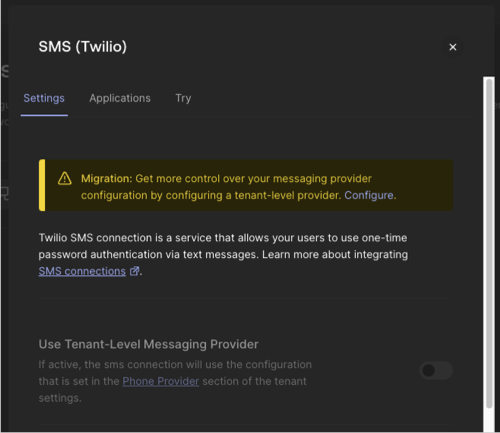 If you must use the legacy experience to configure your phone provider, and the toggle to use a tenant-level provider is missing, contact [Auth0 Support](https://auth0.com/docs/troubleshoot/customer-support).
### Configure Twilio as a tenant-level provider
If you are using Twilio as your phone provider for Passwordless, you must add the Twilio SID and AuthToken to the Unified Phone Experience. You can copy the Twilio SID from your existing configuration, but you will need to get the value of the AuthToken from Twilio.
1. Navigate to [**Branding > Phone Provider** ](https://manage.auth0.com/#/phone/templates/phone/provider).
2. Select and configure your provider:
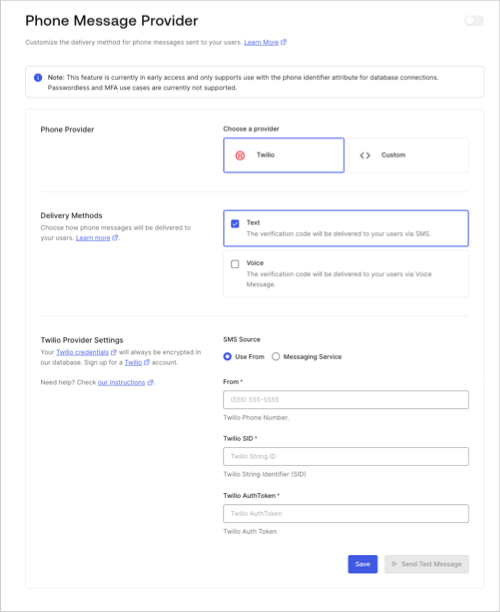 1. Choose Twilio as your phone provider.
2. Choose your delivery methods.
3. Enter Twilio settings.
3. **Save** your changes.
4. Select **Send Test Message** to test the tenant-level provider before using it in a production environment.
5. Enable a tenant-level provider.
1. Navigate to [**Authentication > Passwordless > SMS** ](https://manage.auth0.com/#/connections/passwordless).
2. Select **Use Tenant-level Messaging Provider**
If no toggle exists in your tenant, you are already using the Unified Phone experience.
6. **Save** your changes.
1. Choose Twilio as your phone provider.
2. Choose your delivery methods.
3. Enter Twilio settings.
3. **Save** your changes.
4. Select **Send Test Message** to test the tenant-level provider before using it in a production environment.
5. Enable a tenant-level provider.
1. Navigate to [**Authentication > Passwordless > SMS** ](https://manage.auth0.com/#/connections/passwordless).
2. Select **Use Tenant-level Messaging Provider**
If no toggle exists in your tenant, you are already using the Unified Phone experience.
6. **Save** your changes.
### Create a new custom-phone-provider Action for Passwordless
The Unified Phone Experience does not use the [custom SMS gateway](/docs/ja-JP/ja-jp/authenticate/passwordless/authentication-methods/use-sms-gateway-passwordless) you configured for Passwordless SMS. You can use the Auth0 Dashboard or Management API to configure a custom phone provider with Auth0 Actions. To learn more, read [Configure a Custom Phone Provider](/docs/ja-JP/ja-jp/customize/phone-messages/configure-phone-messaging-providers/configure-a-custom-phone-provider).
##### Configure Passwordless custom-phone-provider
To configure your Custom SMS Gateway phone configuration via phone provider Action:
1. Navigate to [**Branding > Phone Provider** ](https://manage.auth0.com/#/phone/templates/phone/provider).
2. Select your provider:
1. Choose **Custom** .
2. Under **Provider Configuration** , add your new `custom-phone-provider` Actions that forwards the Passwordless notification to a custom SMS gateway.
3. **Save** your changes.
4. Select **Send Test Message** to test the tenant-level provider before using it in a production environment.
5. Navigate to [**Authentication > Passwordless > SMS** ](https://manage.auth0.com/#/connections/passwordless) to enable the **Use Tenant-level Messaging Provider** .
6. **Save** your changes.
##### Custom SMS gateway to custom-phone-provider example
```javascript lines theme={null}
const request = require('');
/**
* Handler to be executed while sending a phone notification
*
@param
{Event} event - Details about the user and the context in which they are logging in.
*
@param
{CustomPhoneProviderAPI} api - Methods and utilities to help change the behavior of sending a phone notification.
*/
exports.onExecuteCustomPhoneProvider = async (event, api) => {
const notificationType = event.notification.message_type;
switch (notificationType) {
case '': {
const req = {
url: event.secrets.GATEWAY_URL,
method: 'POST',
headers: {
'User-Agent': 'Auth0'
},
body: {
recipient: event.notification.recipient,
body: event.notification.as_text, // or event.notification.as_voice
sender: event.notification.from, // TODO: sender is missed we need to check if we want to add it.
req: event.request || {}, // if not enabled, it will come as undefined
}
}
const response = await request(req);
console.log(response.statusCode);
return
}
default: {
// handle other notifications as usual
return;
}
}
};
```
### Update delivery methods
| Phone factors |
Current tenant-level delivery method |
Desired tenant-level delivery method |
User action |
| SMS |
SMS |
SMS + Voice |
None |
| SMS |
SMS |
Voice |
User must update Passwordless phone factors to be a subset of the delivery methods enabled for the tenant-level provider |
| SMS |
SMS + Voice |
Voice |
User must update Passwordless phone factors to be a subset of the delivery methods enabled for the tenant-level provider |
| SMS |
SMS + Voice |
SMS |
None |
## Disable phone provider
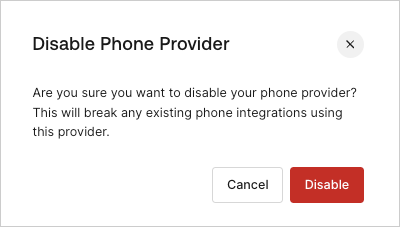
If you configure the Unified Phone Experience and then disable it, existing integrations with your phone provider, including Passwordless, could break.