> ## Documentation Index
> Fetch the complete documentation index at: https://auth0.generaltranslation.app/llms.txt
> Use this file to discover all available pages before exploring further.
# 署名鍵をローテーションする
> Auth0 DashboardまたはManagement APIを使って、テナントのアプリケーションやAPIの署名鍵をローテーションする方法について説明します。
export const AuthCodeGroup = ({children, dropdown}) => {
const [processedChildren, setProcessedChildren] = useState(children);
useEffect(() => {
let unsubscribe = null;
function init() {
unsubscribe = window.autorun(() => {
const processChildren = node => {
if (typeof node === "string") {
let processedNode = node;
for (const [key, value] of window.rootStore.variableStore.values.entries()) {
processedNode = processedNode.replace(new RegExp(key, "g"), value);
}
return processedNode;
} else if (Array.isArray(node)) {
return node.map(processChildren);
} else if (node && node.props && node.props.children) {
return {
...node,
props: {
...node.props,
children: processChildren(node.props.children)
}
};
}
return node;
};
setProcessedChildren(processChildren(children));
});
}
if (window.rootStore) {
init();
} else {
window.addEventListener("adu:storeReady", init);
}
return () => {
window.removeEventListener("adu:storeReady", init);
unsubscribe?.();
};
}, [children]);
return {processedChildren};
};
export const AuthCodeBlock = ({filename, icon, language, highlight, children}) => {
const [processedChildren, setProcessedChildren] = useState(children);
useEffect(() => {
let unsubscribe = null;
function init() {
unsubscribe = window.autorun(() => {
let processedChildren = children;
for (const [key, value] of window.rootStore.variableStore.values.entries()) {
processedChildren = processedChildren.replace(new RegExp(key, "g"), value);
}
setProcessedChildren(processedChildren);
});
}
if (window.rootStore) {
init();
} else {
window.addEventListener("adu:storeReady", init);
}
return () => {
window.removeEventListener("adu:storeReady", init);
unsubscribe?.();
};
}, [children]);
return
{processedChildren}
;
};
署名鍵を定期的に手動でローテーションして、アプリケーションやAPIがトークンの検証に使用するJSON Web Key(JWK)を変更することができます。アプリケーションまたはAPIがこのキー変更を許可**せず** 、トークンの検証に期限の切れた署名鍵を使おうとした場合は、認証要求が失敗します。
Auth0では、最初に開発テナントで署名鍵のローテーションを実行して、アプリケーションとAPIの動作が引き続き正常かどうかを確認することをお勧めしています。適切に機能していることが確認できたら、同じ署名鍵のローテーションを運用テナントで実行します。
Auth0は一度に1つの署名鍵しか署名しませんが、テナントのOpenID Connect(OIDC)ディスカバリーには常に複数のキーが含まれています。OIDCディスカバリーには常に現在のキーと次のキーの両方が含まれています。以前のキーが取り消されていない場合には、それも含まれています。緊急の状況でも速やかに動作するように、アプリケーションがディスカバリーにあるどのキーでも使用できるようにしておきます。OpenID Connectディスカバリーについては、「[JSON Web Key Setを見つける](/docs/ja-JP/ja-jp/secure/tokens/json-web-tokens/locate-json-web-key-sets)」をお読みください。
新しい署名鍵を使ったアプリケーションの更新を、余裕をもって実行できるようにするため、以前の鍵を取り消すまでその鍵で署名したトークンが無効にならないようになっています。詳細については、「[署名鍵を取り消す](/docs/ja-JP/ja-jp/get-started/tenant-settings/signing-keys/revoke-signing-keys)」をお読みください。
Auth0 DashboardやManagement APIを使用すると、テナントのアプリケーションの署名鍵をローテーションすることができます。
## Dashboardの使用
1. [[Dashboard]>[Settings(設定)]>[Signing Keys(署名鍵)]](https://manage.auth0.com/#/tenant/signing_keys)に移動します。
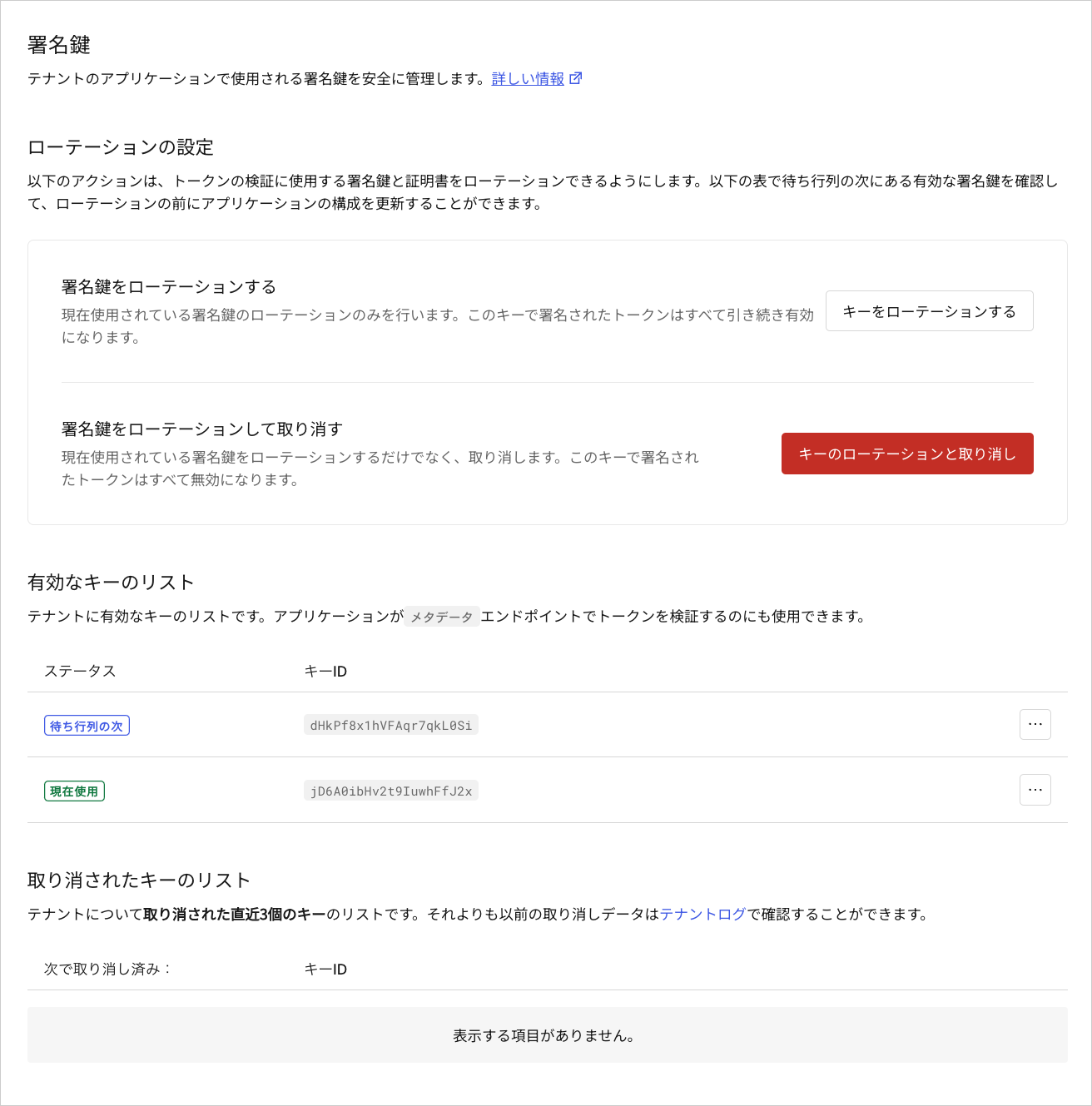 2. **[Rotation Settings(ローテーション設定)]** の下から、**[Rotate Signing Key(署名鍵のローテーション)]** を見つけ、**[Rotate Key(キーのローテーション)]** を選択します。
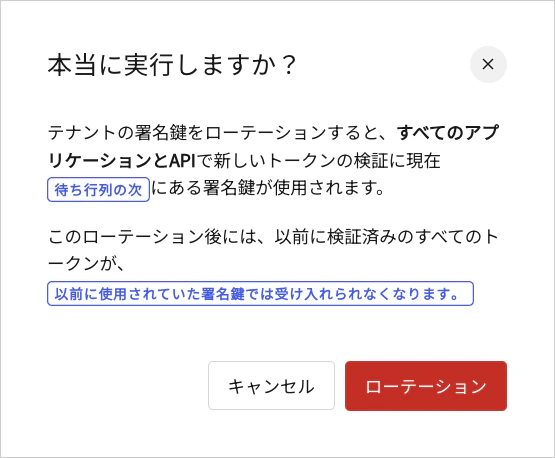
3. **[Rotate(ローテーション)]** をクリックして確定します。
2. **[Rotation Settings(ローテーション設定)]** の下から、**[Rotate Signing Key(署名鍵のローテーション)]** を見つけ、**[Rotate Key(キーのローテーション)]** を選択します。
3. **[Rotate(ローテーション)]** をクリックして確定します。
## Management APIの使用
1. 署名鍵のリストを取得するには、[全アプリケーション署名鍵の取得](/docs/ja-JP/ja-jp/api/management/v2#!/Keys/get_signing_keys)エンドポイントに`GET`呼び出しを行います。
2. 署名鍵をローテーションするには、[アプリケーション署名鍵のローテーション](/docs/ja-JP/ja-jp/api/management/v2#!/Keys/post_signing_keys)エンドポイントに`POST`呼び出しを行います。`MGMT_API_ACCESS_TOKEN`プレースホルダーの値をManagement APIのアクセストークンで置き換えてください。
```bash cURL theme={null}
curl --request POST \
--url 'https://{yourDomain}/api/v2/keys/signing/rotate' \
--header 'authorization: Bearer {yourMgmtApiAccessToken}'
```
```csharp C# theme={null}
var client = new RestClient("https://{yourDomain}/api/v2/keys/signing/rotate");
var request = new RestRequest(Method.POST);
request.AddHeader("authorization", "Bearer {yourMgmtApiAccessToken}");
IRestResponse response = client.Execute(request);
```
```go Go theme={null}
package main
import (
"fmt"
"net/http"
"io/ioutil"
)
func main() {
url := "https://{yourDomain}/api/v2/keys/signing/rotate"
req, _ := http.NewRequest("POST", url, nil)
req.Header.Add("authorization", "Bearer {yourMgmtApiAccessToken}")
res, _ := http.DefaultClient.Do(req)
defer res.Body.Close()
body, _ := ioutil.ReadAll(res.Body)
fmt.Println(res)
fmt.Println(string(body))
}
```
```java Java theme={null}
HttpResponse response = Unirest.post("https://{yourDomain}/api/v2/keys/signing/rotate")
.header("authorization", "Bearer {yourMgmtApiAccessToken}")
.asString();
```
```javascript Node.JS theme={null}
var axios = require("axios").default;
var options = {
method: 'POST',
url: 'https://{yourDomain}/api/v2/keys/signing/rotate',
headers: {authorization: 'Bearer {yourMgmtApiAccessToken}'}
};
axios.request(options).then(function (response) {
console.log(response.data);
}).catch(function (error) {
console.error(error);
});
```
```objc Obj-C theme={null}
#import
NSDictionary *headers = @{ @"authorization": @"Bearer {yourMgmtApiAccessToken}" };
NSMutableURLRequest *request = [NSMutableURLRequest requestWithURL:[NSURL URLWithString:@"https://{yourDomain}/api/v2/keys/signing/rotate"]
cachePolicy:NSURLRequestUseProtocolCachePolicy
timeoutInterval:10.0];
[request setHTTPMethod:@"POST"];
[request setAllHTTPHeaderFields:headers];
NSURLSession *session = [NSURLSession sharedSession];
NSURLSessionDataTask *dataTask = [session dataTaskWithRequest:request
completionHandler:^(NSData *data, NSURLResponse *response, NSError *error) {
if (error) {
NSLog(@"%@", error);
} else {
NSHTTPURLResponse *httpResponse = (NSHTTPURLResponse *) response;
NSLog(@"%@", httpResponse);
}
}];
[dataTask resume];
```
```php PHP theme={null}
$curl = curl_init();
curl_setopt_array($curl, [
CURLOPT_URL => "https://{yourDomain}/api/v2/keys/signing/rotate",
CURLOPT_RETURNTRANSFER => true,
CURLOPT_ENCODING => "",
CURLOPT_MAXREDIRS => 10,
CURLOPT_TIMEOUT => 30,
CURLOPT_HTTP_VERSION => CURL_HTTP_VERSION_1_1,
CURLOPT_CUSTOMREQUEST => "POST",
CURLOPT_HTTPHEADER => [
"authorization: Bearer {yourMgmtApiAccessToken}"
],
]);
$response = curl_exec($curl);
$err = curl_error($curl);
curl_close($curl);
if ($err) {
echo "cURL Error #:" . $err;
} else {
echo $response;
}
```
```python Python theme={null}
import http.client
conn = http.client.HTTPSConnection("")
headers = { 'authorization': "Bearer {yourMgmtApiAccessToken}" }
conn.request("POST", "/{yourDomain}/api/v2/keys/signing/rotate", headers=headers)
res = conn.getresponse()
data = res.read()
print(data.decode("utf-8"))
```
```ruby Ruby theme={null}
require 'uri'
require 'net/http'
require 'openssl'
url = URI("https://{yourDomain}/api/v2/keys/signing/rotate")
http = Net::HTTP.new(url.host, url.port)
http.use_ssl = true
http.verify_mode = OpenSSL::SSL::VERIFY_NONE
request = Net::HTTP::Post.new(url)
request["authorization"] = 'Bearer {yourMgmtApiAccessToken}'
response = http.request(request)
puts response.read_body
```
```swift Swift theme={null}
import Foundation
let headers = ["authorization": "Bearer {yourMgmtApiAccessToken}"]
let request = NSMutableURLRequest(url: NSURL(string: "https://{yourDomain}/api/v2/keys/signing/rotate")! as URL,
cachePolicy: .useProtocolCachePolicy,
timeoutInterval: 10.0)
request.httpMethod = "POST"
request.allHTTPHeaderFields = headers
let session = URLSession.shared
let dataTask = session.dataTask(with: request as URLRequest, completionHandler: { (data, response, error) -> Void in
if (error != nil) {
print(error)
} else {
let httpResponse = response as? HTTPURLResponse
print(httpResponse)
}
})
dataTask.resume()
```
## キーのローテーションによる影響
### アクセストークンを受け入れるAPIとAPIゲートウェイ
ほとんどのミドルウェアとAPIゲートウェイは、JSON Web Key Set(JWKS)エンドポイントを利用して、特定の間隔で現在の署名鍵と次の署名鍵を取得します。ミドルウェアやAPIゲートウェイがこのエンドポイントをサポートして**おらず** 、`*.cer`ファイルの手動設定が必要な場合は、Auth0での署名キーのローテーションとミドルウェアおよびゲートウェイの再構成を調整する必要があります。
### 通常のWebアプリケーション
Auth0で署名鍵をローテーションする場合には、WS-FedやSAMLを利用するアプリケーションを再構成して調整する必要があります。これは通常、新しい公開証明書のアップロードや、WS-Fed/SAMLメタデータURLを追加してアプリケーションを再構成した際に起こります。これにより、アプリケーションがトークンの検証に使用するJWKSキーが変更されてしまいます。実装でJWKSキーが変わらないと想定されていないことを確認してください。
## もっと詳しく
* [署名鍵を取り消す](/docs/ja-JP/ja-jp/get-started/tenant-settings/signing-keys/revoke-signing-keys)
* [JSON Web Key Setを見つける](/docs/ja-JP/ja-jp/secure/tokens/json-web-tokens/locate-json-web-key-sets)
* [アプリケーションの署名アルゴリズムを変更する](/docs/ja-JP/ja-jp/get-started/applications/change-application-signing-algorithms)
* [署名証明書を確認する](/docs/ja-JP/ja-jp/get-started/tenant-settings/signing-keys/view-signing-certificates)