> ## Documentation Index
> Fetch the complete documentation index at: https://auth0.generaltranslation.app/llms.txt
> Use this file to discover all available pages before exploring further.

> Auth0 でエフェメラルセッションを構成する方法を学びます。

# ユースケース Configure Keep Me Signed In using Sessions

<Card title="開始する前に">
  次の準備ができていることを確認してください:

  * アプリケーション用に [Custom Domain](/docs/ja-JP/customize/custom-domains) を構成済みの Auth0 テナント

  * インストールおよび認証済みの [Auth0 CLI](https://auth0.github.io/auth0-cli/auth0_actions.html)

  * [post-login Action](/docs/ja-JP/customize/actions/explore-triggers/signup-and-login-triggers/login-trigger)

  * Auth0 テナントセッションが [non-persistent](/docs/ja-JP/manage-users/sessions/session-lifecycle) セッションポリシーを使用していること

  * （オプション）セッションのアイドルおよび絶対セッションタイムアウト値の構成
</Card>

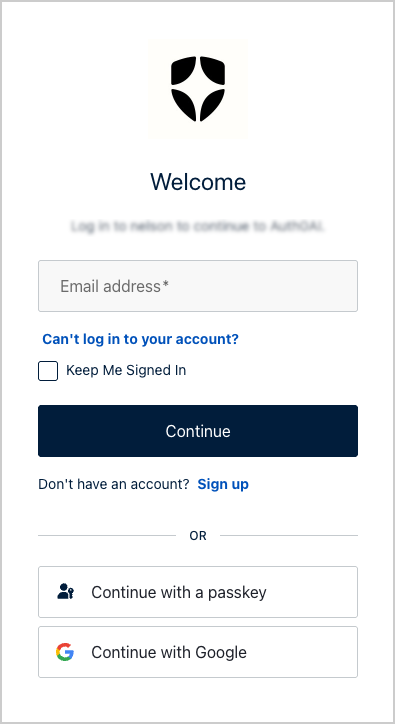
**Keep Me Signed In** エクスペリエンスは、信頼済みデバイス上でログイン状態を維持するオプションをユーザーに提供します。

<Frame>
  <img src="https://mintcdn.com/generaltranslationinc/md6b8ua1hdYa2pM7/docs/images/cdy7uua7fh8z/sessions-use-case/keep-me-signed-in-login.png?fit=max&auto=format&n=md6b8ua1hdYa2pM7&q=85&s=9102a17f86e402dd2f17ab788e17b579" alt="ログインの画像" width="395" height="724" data-path="docs/images/cdy7uua7fh8z/sessions-use-case/keep-me-signed-in-login.png" />
</Frame>

* **Keep Me Signed In** チェックボックスが選択されている場合、ブラウザの再起動後も維持される永続セッションが設定されます。

* **Keep Me Signed In** チェックボックスが選択されていない場合、ブラウザを閉じると失効する非永続セッションが設定されます。

[non-persistent（エフェメラル）セッション](/docs/ja-JP/manage-users/sessions/session-lifecycle) と [Actions](/docs/ja-JP/customize/actions/explore-triggers/signup-and-login-triggers/login-trigger) を使用すると、リフレッシュトークンをフロントエンドに公開することなく、サーバー側でこのロジックを安全に処理できます。

Custom Prompts、[Auth0 CLI](https://auth0.github.io/auth0-cli/auth0_actions.html)、および Actions 経由のエフェメラルセッションを使用することで、リフレッシュトークン不要、クライアント側セッションハック不要、かつバックエンドで完全に制御された、安全でモダンな「Keep Me Signed In」フローを実装できます。

このソリューションは、次を重視するお客様に最適です:

* ゼロトラストを前提としたブラウザセッション処理

* 最小限のセッション永続化

* 信頼済みデバイスによる上書き設定

<div id="1-configure-a-universal-login-page-and-add-a-custom-prompt">
  ## 1. Universal Login ページを設定し、カスタムプロンプトを追加する
</div>

ユーザーの **Keep Me Signed In** の設定内容を取得するには、Auth0 CLI を使用してページテンプレートを設定し、カスタムプロンプトを追加することで、[Universal Login](/docs/ja-JP/customize/login-pages/universal-login/customize-signup-and-login-prompts) をカスタマイズする必要があります。

<div id="optional-enable-the-universal-login-page-template">
  ### 任意: Universal Login ページテンプレートを有効にする
</div>

<Callout icon="file-lines" color="#0EA5E9" iconType="regular">
  この手順は、テナントに Universal Login テンプレートが構成されていない場合にのみ必要です。
</Callout>

次のコマンドを使用して、ページテンプレートを作成または更新します。

```bash lines theme={null}
auth0 universal-login templates update
```

カスタマイズエディタがログインページテンプレートを開きます。ブランドに合う任意の HTML 構造を使用できます。

以下は、背景とウィジェットのラッパーを含む最小限のテンプレート例です。

```html lines theme={null}
<!DOCTYPE html>
<html lang="{{locale}}">
  <head>
    {%- auth0:head -%}
    <style>
      body {
        background-image: url("https://images.unsplash.com/photo-1643916861364-02e63ce3e52f");
        background-size: cover;
        background-position: center;
      }
      .prompt-wrapper {
        display: flex;
        align-items: center;
        justify-content: center;
        height: 100%;
        background-color: rgba(0, 0, 0, 0.3);
      }
    </style>
    <title>{{ prompt.screen.texts.pageTitle }}</title>
  </head>
  <body class="_widget-auto-layout">
    {% if prompt.name == "login" or prompt.name == "signup" %}
      <div class="prompt-wrapper">
        {%- auth0:widget -%}
      </div>
    {% else %}
      {%- auth0:widget -%}
    {% endif %}
  </body>
</html>
```

エディタの内容を保存して閉じると、Auth0 CLI から確認メッセージが表示されます。

```bash lines theme={null}
Do you want to save the template? Yes

▸ Successfully updated the template for the New Universal Login Experience!
```
<div id="2-add-a-keep-me-signed-in-checkbox-using-auth0-cli">
  ## 2. Auth0 CLI を使用して「サインインしたままにする」チェックボックスを追加する
</div>

Universal Login 画面にチェックボックスを追加するには、次の手順に従ってください。

<div id="launch-the-customization-editor">
  ### カスタマイズエディターを起動する
</div>

1. テナントの設定に応じて、login-id プロンプトまたは login プロンプトのカスタマイズエディターを開きます。

```bash lines theme={null}
auth0 universal-login customize -p login-id
```

2. レンダリングモードは **standard** を選択します

```bash lines theme={null}
Rendering Mode: standard
```

カスタマイズエディタがローカルアドレスで起動します。

```bash lines theme={null}
http://localhost:52649
```

<Callout icon="file-lines" color="#0EA5E9" iconType="regular">
  自身のテナントで `login` と `login-id` のどちらが使われているか分からない場合は、Auth0 の [プロンプトのカスタマイズ](/docs/ja-JP/customize/login-pages/universal-login/customize-signup-and-login-prompts) を参照してください。
</Callout>

<div id="configure-the-checkbox">
  ### チェックボックスを設定する
</div>

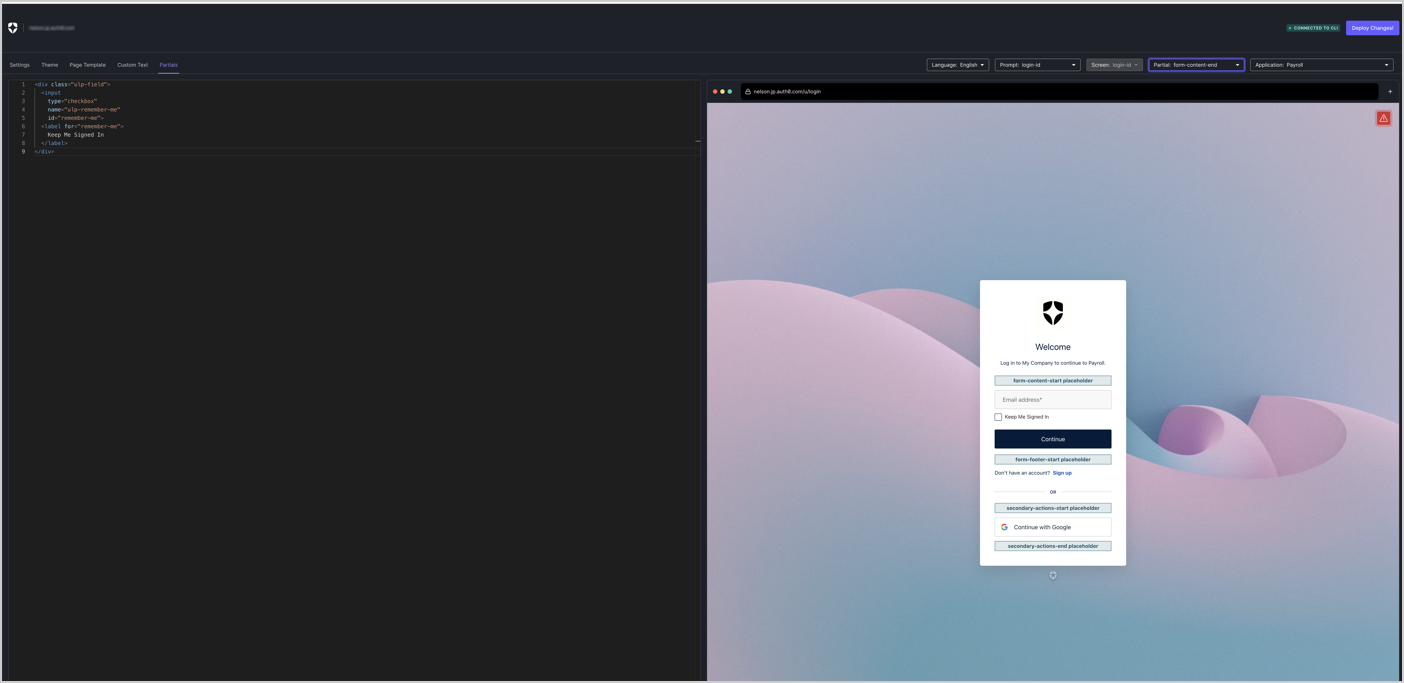
カスタマイズエディターで **Partials** オプションを開きます。

1. **Prompt** を `login-id`（または `login`）に設定します。

2. **Screen** を `login-id`（または `login`）に設定します。

3. **Partial** を `form-footer-end` に設定します。

<Frame>
  <img src="https://mintcdn.com/generaltranslationinc/md6b8ua1hdYa2pM7/docs/images/cdy7uua7fh8z/sessions-use-case/partials.png?fit=max&auto=format&n=md6b8ua1hdYa2pM7&q=85&s=c338a67eb980ccd172f3106ce8b11dc3" alt="Auth0 CLI partials" width="1404" height="683" data-path="docs/images/cdy7uua7fh8z/sessions-use-case/partials.png" />
</Frame>

次の HTML スニペットを追加します。

```html lines theme={null}
<div class="ulp-field">
  <input type="checkbox" name="ulp-remember-me" id="remember-me">
  <label for="remember-me">このデバイスでサインインしたままにしますか?</label>
</div>
```

これで、ログインフォームの下にチェックボックスが表示されます。

<div id="deploy-your-changes">
  ### 変更をデプロイする
</div>

右上にある **Deploy Changes** を選択して、カスタマイズ内容を保存して適用します。

<div id="checkpoint">
  ## チェックポイント
</div>

Universal Login を使用してログインします。\
ログイン画面には、**ログインしたままにする** チェックボックスがあります。

<Frame>
  <img src="https://mintcdn.com/generaltranslationinc/md6b8ua1hdYa2pM7/docs/images/cdy7uua7fh8z/sessions-use-case/keep-me-signed-in-login.png?fit=max&auto=format&n=md6b8ua1hdYa2pM7&q=85&s=9102a17f86e402dd2f17ab788e17b579" alt="ログイン画面の画像" width="395" height="724" data-path="docs/images/cdy7uua7fh8z/sessions-use-case/keep-me-signed-in-login.png" />
</Frame>

<div id="3-create-a-post-login-action-using-auth0-cli">
  ## 3. Auth0 CLI を使用して Post-Login Action を作成する
</div>

Auth0 CLI 用に `set-session-persistence.js` という名前の新しいファイルを作成し、次のコードを追加します。

```javascript lines theme={null}
exports.onExecutePostLogin = async (event, api) => {

  // パラメータが利用可能な場合のみ変更を適用
  if (event.request.body['ulp-remember-me']) {
    api.session.setCookieMode('persistent');
  } 
};
```

Auth0 CLI を使用し、`set-session-persistence.js` ファイルを使って Post-Login Action を作成または更新します。

```bash lines theme={null}
auth0 actions create --name kmsi --trigger post-login --code "$(cat set-session-persistence.js)"
```

Auth0 CLI は Action の ID を返します：

```bash lines theme={null}
ID             f54c4aae-431f-4290-a7e0-cfc6a3f28386
NAME           kmsi
TYPE           post-login
STATUS         pending
DEPLOYED       ✗
LAST DEPLOYED
LAST UPDATED   0 seconds ago
CREATED        0秒前
CODE           exports.onExecutePostLogin = async (event, api) => {
                   if (event.request.body['ulp-remember-me']) {
                     api.session.setCookieMode("persistent");
                   } else {
                     api.session.setCookieMode("non-persistent");
                   }
                 };
```

`id` を指定して Action をデプロイします：

```bash lines theme={null}
auth0 actions deploy <id>
```

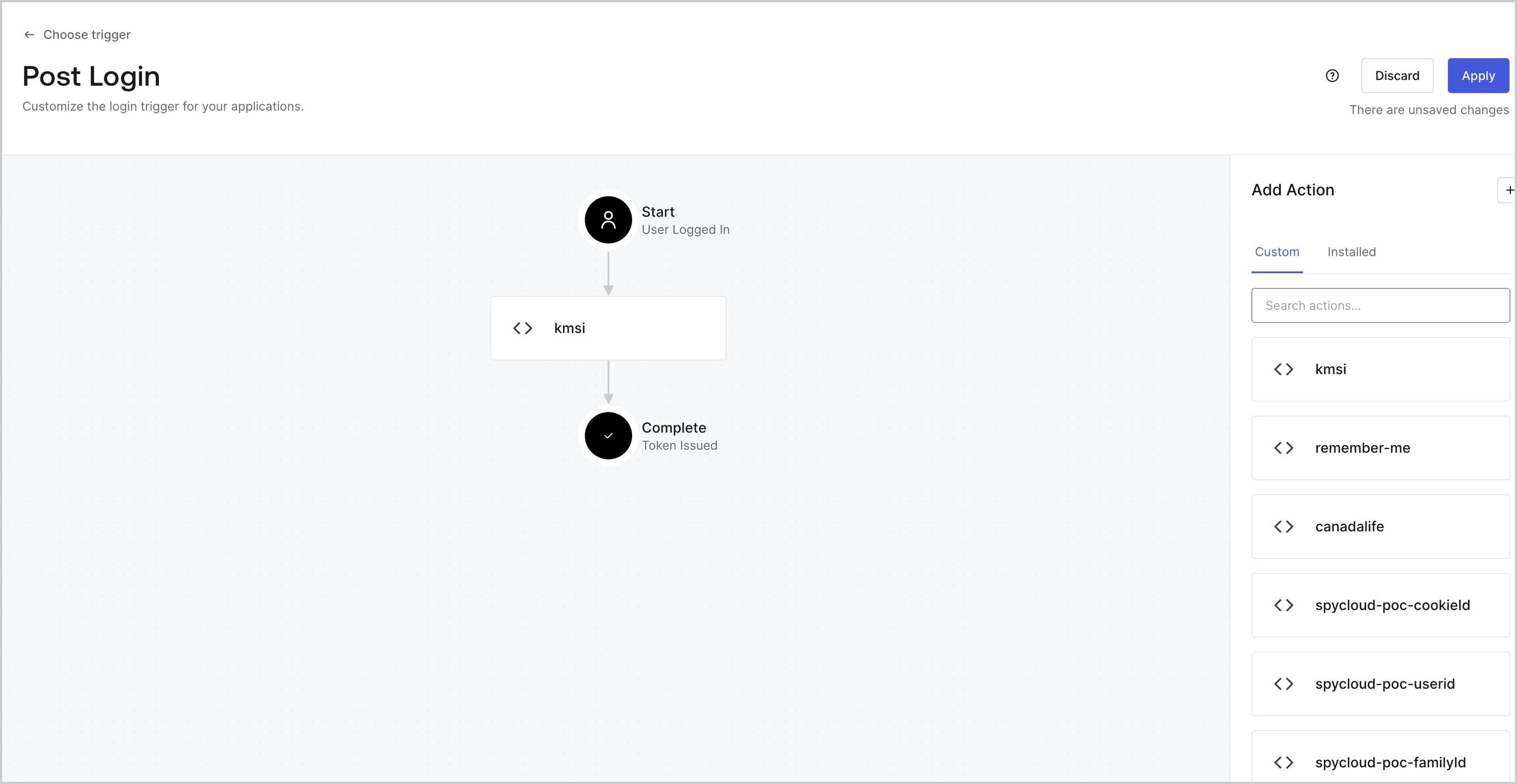
新しい Action を現在のフローに追加するには、[Auth0 Dashboard > Actions > Triggers > Post-Login](https://manage.auth0.com/#/actions/triggers/post-login) に移動し、**Apply** を選択します。

<Frame>
  <img src="https://mintcdn.com/generaltranslationinc/md6b8ua1hdYa2pM7/docs/images/cdy7uua7fh8z/sessions-use-case/post-login.png?fit=max&auto=format&n=md6b8ua1hdYa2pM7&q=85&s=88e69753adcd5b25a113c3616c14401c" alt="Dashboard Actions Triggers Post Login" width="2808" height="1452" data-path="docs/images/cdy7uua7fh8z/sessions-use-case/post-login.png" />
</Frame>

<div id="optional-set-session-duration-for-trusted-devices">
  ### 任意 - 信頼済みデバイスのセッション期間を設定する
</div>

`api.session.setExpiresAt()` または `api.session.setIdleExpiresAt()` メソッドを使用して、セッションの有効期間をさらに細かく設定できます。

```javascript lines theme={null}
exports.onExecutePostLogin = async (event, api) => {
  if (event.request.body['ulp-remember-me']) {
    api.session.setCookieMode("persistent");

    const now = Date.now();
    api.session.setExpiresAt(now + 7 * 24 * 60 * 60 * 1000); // 7日
  } else {
    api.session.setCookieMode("nonpersistent");
  }
};
```

<div id="4-test-implementation">
  ## 4. テスト実装
</div>

セッションの動作を検証するには、次のことを行います。

Universal Login を使用してログインし、**Keep Me Signed In** チェックボックスを選択します。

* テナントログで、イベントタイプが `s` または `ssa` のものを検索し、

  * `cookie: { mode: "non-persistent" }`

  * `cookie: { mode: "persistent" }`

* Actions 内で `event.session.cookie.mode` を検索します