> ## Documentation Index
> Fetch the complete documentation index at: https://auth0.generaltranslation.app/llms.txt
> Use this file to discover all available pages before exploring further.

> Auth0 Dashboard、Management API、Actions を使用してテナントのセッションの有効期間を設定する方法について説明します。

# セッション有効期間の設定

セッションの有効期間を設定するには、Auth0 の [Dashboard](/docs/ja-JP/get-started/auth0-overview/dashboard)、[Management API](https://auth0.com/docs/api/management/v2)、または [Post-Login Action](/docs/ja-JP/customize/actions/explore-triggers/signup-and-login-triggers/login-trigger) を使用できます。

<div id="auth0-dashboard">
  ## Auth0 Dashboard
</div>

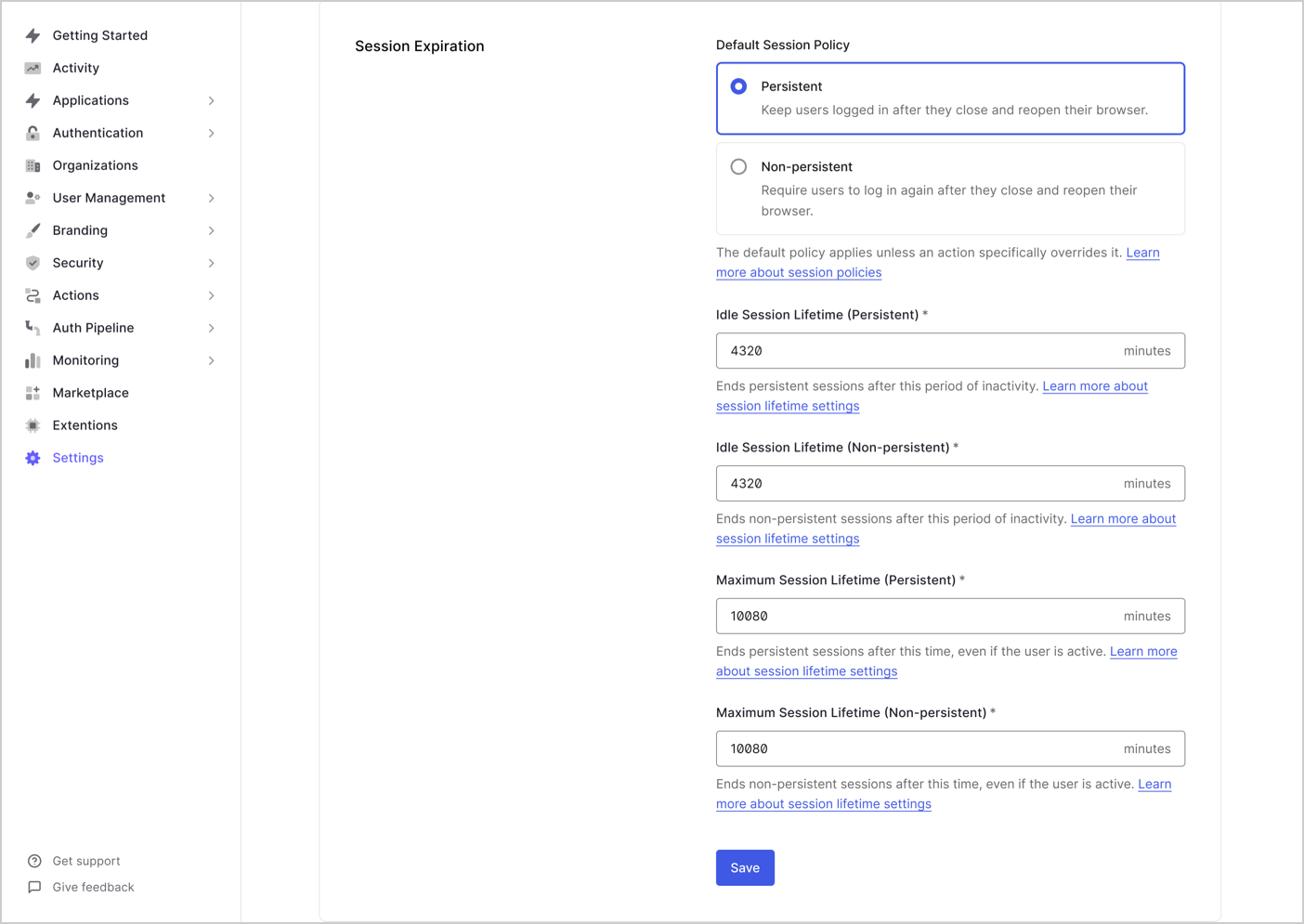
Auth0 Dashboard を使用してセッションの有効期間を設定するには、次の手順に従います。

1. **Dashboard > Tenant Settings** にアクセスし、**Advanced** ビューを選択します。

2. **Session Expiration** で、次の項目を設定できます。

<table class="table">
  <thead>
    <tr>
      <th><strong>Session Policy</strong></th>
      <th><strong>Description</strong></th>
    </tr>
  </thead>

  <tbody>
    <tr>
      <td><strong>Idle Session Lifetime (Persistent)</strong></td>
      <td>永続セッションが期限切れになるまでの非アクティブ時間の最長値（分単位）。</td>
    </tr>

    <tr>
      <td><strong>Idle Session Lifetime (Non-Persistent)</strong></td>
      <td>非永続セッションが期限切れになるまでの非アクティブ時間の最長値（分単位）。</td>
    </tr>

    <tr>
      <td><strong>Maximum Session Lifetime  (Persistent)</strong></td>
      <td>ユーザーがアクティブであっても、永続セッションが存在できる最長時間（分単位）。</td>
    </tr>

    <tr>
      <td><strong>Maximum Session Lifetime (Non-Persistent)</strong></td>
      <td>ユーザーがアクティブであっても、非永続セッションが存在できる最長時間（分単位）。</td>
    </tr>
  </tbody>
</table>

<Frame>
  <img src="https://mintcdn.com/generaltranslationinc/md6b8ua1hdYa2pM7/docs/images/cdy7uua7fh8z/session-lifetime/Dashboard-Tenant-Settings-Advanced-Session-expiration.png?fit=max&auto=format&n=md6b8ua1hdYa2pM7&q=85&s=40aa63991c74735b8dfedf40f8ae98cb" alt="Dashboard > Tenant > Settings > Advanced > Session Expiration" data-og-width="1404" width="1404" data-og-height="995" height="995" data-path="docs/images/cdy7uua7fh8z/session-lifetime/Dashboard-Tenant-Settings-Advanced-Session-expiration.png" data-optimize="true" data-opv="3" srcset="https://mintcdn.com/generaltranslationinc/md6b8ua1hdYa2pM7/docs/images/cdy7uua7fh8z/session-lifetime/Dashboard-Tenant-Settings-Advanced-Session-expiration.png?w=280&fit=max&auto=format&n=md6b8ua1hdYa2pM7&q=85&s=de2a7f7abe531ce435872f6474734b08 280w, https://mintcdn.com/generaltranslationinc/md6b8ua1hdYa2pM7/docs/images/cdy7uua7fh8z/session-lifetime/Dashboard-Tenant-Settings-Advanced-Session-expiration.png?w=560&fit=max&auto=format&n=md6b8ua1hdYa2pM7&q=85&s=838f598c4eeea229a88e1b3c9dace849 560w, https://mintcdn.com/generaltranslationinc/md6b8ua1hdYa2pM7/docs/images/cdy7uua7fh8z/session-lifetime/Dashboard-Tenant-Settings-Advanced-Session-expiration.png?w=840&fit=max&auto=format&n=md6b8ua1hdYa2pM7&q=85&s=984631abca7ea3f16b8ee0a7a962c718 840w, https://mintcdn.com/generaltranslationinc/md6b8ua1hdYa2pM7/docs/images/cdy7uua7fh8z/session-lifetime/Dashboard-Tenant-Settings-Advanced-Session-expiration.png?w=1100&fit=max&auto=format&n=md6b8ua1hdYa2pM7&q=85&s=beaf4c925cf7a33e863021e6116ec13c 1100w, https://mintcdn.com/generaltranslationinc/md6b8ua1hdYa2pM7/docs/images/cdy7uua7fh8z/session-lifetime/Dashboard-Tenant-Settings-Advanced-Session-expiration.png?w=1650&fit=max&auto=format&n=md6b8ua1hdYa2pM7&q=85&s=4ee87e5e88b1da092d5027d9cba0296a 1650w, https://mintcdn.com/generaltranslationinc/md6b8ua1hdYa2pM7/docs/images/cdy7uua7fh8z/session-lifetime/Dashboard-Tenant-Settings-Advanced-Session-expiration.png?w=2500&fit=max&auto=format&n=md6b8ua1hdYa2pM7&q=85&s=91408492833ba05a5cd4598d1da44324 2500w" />
</Frame>

<div id="auth0-management-api">
  ## Auth0 Management API
</div>

Auth0 Management API を使用してセッションの有効期間を設定するには、次のようにします。

<Callout icon="file-lines" color="#0EA5E9" iconType="regular">
  `/api/v2/tenants/settings` エンドポイントへの呼び出しには、`update:tenant_settings` スコープを持つ [Management API access token](/docs/ja-JP/secure/tokens/access-tokens) が必要です。
</Callout>

[/api/v2/tenants/settings](/docs/ja-JP/api/management/v2/tenants/patch-settings) エンドポイントに対して `PATCH` リクエストを送信します。

```bash cURL theme={null}
curl --request PATCH \
  --url 'https://<your-domain>/api/v2/tenants/settings' \
  --header 'Authorization: Bearer MGMT_API_ACCESS_TOKEN' \
  --header 'Content-Type: application/json' \
  --data '{\
    "session_lifetime": SESSION_LIFETIME_VALUE,\
    "idle_session_lifetime": IDLE_SESSION_LIFETIME_VALUE,\
    "ephemeral_session_lifetime": EPHEMERAL_SESSION_LIFETIME_VALUE,\
    "idle_ephemeral_session_lifetime": EPHEMERAL_IDLE_SESSION_LIFETIME_VALUE\
  }'
```

<table class="table">
  <thead>
    <tr>
      <th><strong>パラメーター</strong></th>
      <th><strong>説明</strong></th>
    </tr>
  </thead>

  <tbody>
    <tr>
      <td><code>session\_lifetime</code></td>
      <td>絶対タイムアウトまでの最大時間（時間単位）。</td>
    </tr>

    <tr>
      <td><code>idle\_session\_lifetime</code></td>
      <td>非アクティブ状態が続いた場合にセッションが期限切れとなるまでの最大時間（時間単位）。</td>
    </tr>

    <tr>
      <td><code>ephemeral\_session\_lifetime</code></td>
      <td>絶対タイムアウトまでの最大時間（時間単位）。</td>
    </tr>

    <tr>
      <td><code>idle\_ephemeral\_session\_lifetime</code></td>
      <td>非アクティブ状態が続いた場合にセッションが期限切れとなるまでの最大時間（時間単位）。</td>
    </tr>
  </tbody>
</table>

<div id="auth0-post-login-actions">
  ## Auth0 ポストログイン Actions
</div>

`api.session` メソッドと [ポストログイン Action](/docs/ja-JP/customize/actions/explore-triggers/signup-and-login-triggers/login-trigger) を使用すると、ユーザーやコンテキスト固有のロジックに基づいて、ログインごとにデフォルトのテナントセッション設定を動的に上書きできます。

ユースケースの例としては、次のようなものがあります:

* リスクの高いログインのタイムアウトを短くする

* 信頼されたユーザーや組織に対してタイムアウトを延長する

* アプリケーションの種類に基づいて Cookie の永続性を調整する

セッションの有効期間を構成するために利用できる `api.session` メソッドは次のとおりです:

* `api.session.setExpiresAt`

* `api.session.setIdleExpiresAt`

* `api.session.setCookieMode`

<Callout icon="file-lines" color="#0EA5E9" iconType="regular">
  `api.session` メソッドは現在のセッションにのみ適用され、ログインのトランザクション中に呼び出す必要があります。これらのメソッドを使用するには、`event.session.id` プロパティが利用可能である必要があります。
</Callout>

詳しくは、[Sessions with Actions](/docs/ja-JP/manage-users/sessions/manage-sessions-actions) を参照してください。