

How it works
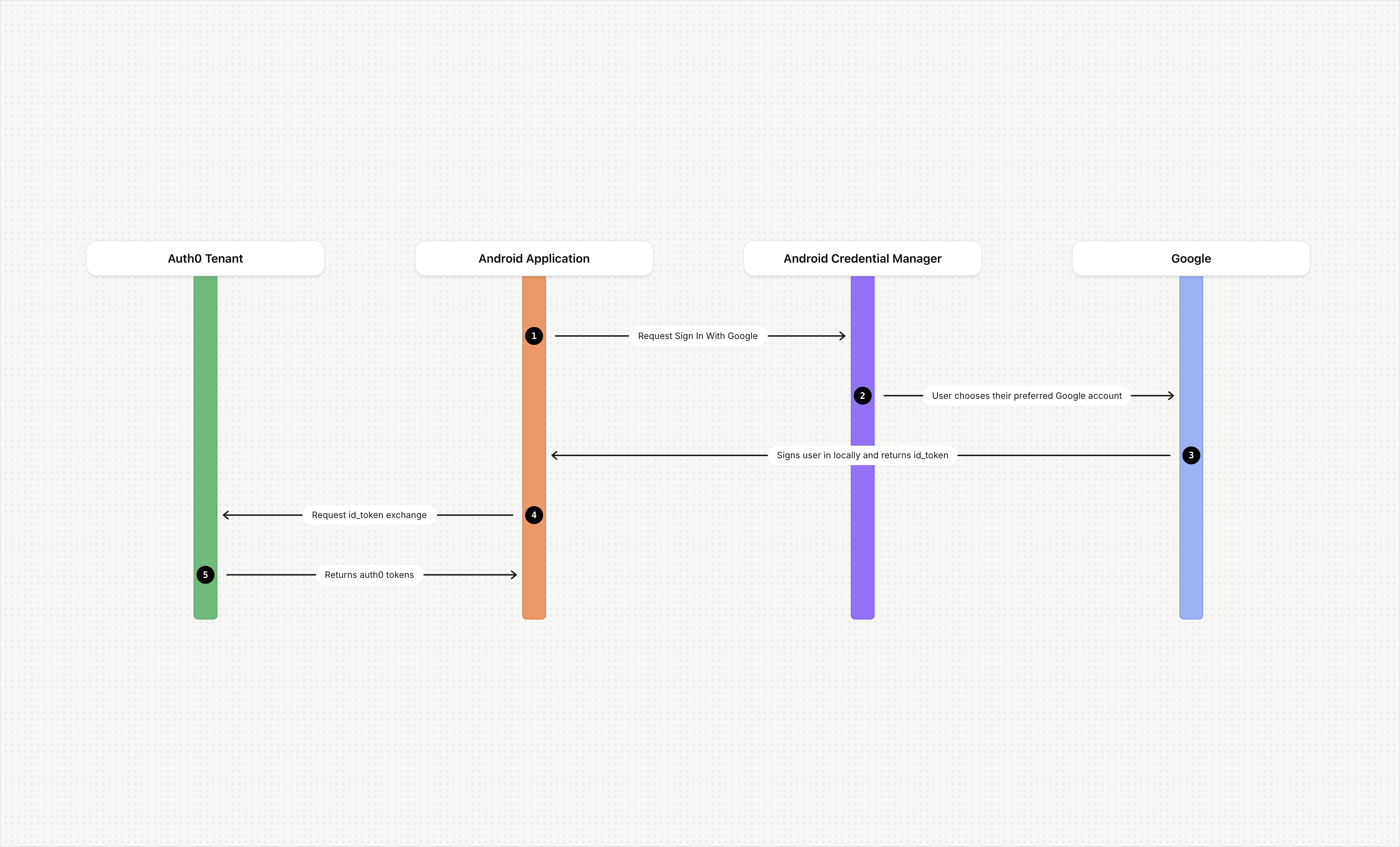
- A user opens your Android application and chooses to log in with Google.
- Your Android application uses the Credential Manager to request Sign in with Google.
- On the account selection prompt, the user chooses their preferred Google account.
- Google signs the user in locally and handles all authentication.
- The user completes sign-in with no additional interaction required.
- Google returns an
id_tokento your Android application. - Your Android application sends the
id_tokento your Auth0 tenant for validation. Auth0 validates theclient_idfrom theid_tokenagainst theclient_idof the Google social connection configured in your tenant. - The Auth0 server returns an
access_tokento your Android application.
Before you begin
- A Google social connection has been set up within your Auth0 tenant.
- Sign in with Google has been added to your Android application using Android’s Credential Manager.
Configuring Sign in with Google for Android applications
- Creating credentials in Google Cloud Console.
- Configuring application details in Auth0.
- Updating code in your Android application.
Create Credentials in the Google Cloud Console
-
Create an OAuth 2.0 credential with the type set to
Android. This is referred to asclient_id_native. -
Add the SHA1 hash for the native application to the Android Client from Step 1.
- Google currently only supports SHA1.
-
Create an additional OAuth client for web (
client_id_web).- In some scenarios, you may have already configured this item for your social connections that support web-based Sign in with Google.
You cannot use Google Credential Manager with the Android
client_id or an error will occur. In the ID Token returned from Google, the authorized party (azp) is automatically set to the Android OAuth Client ID, and the audience (aud) is set to the Web OAuth Client ID.When invoking the Credentials Manager from Android, the native application should use the client_id_web via .setServerClientId in the Credentials Manager SDK. client_id_web corresponds to the Web Application OAuth 2 Credential in the Google Cloud Console, and it is configured in the Google OAuth2 social connection. For more information, refer to Google’s documentation.Configure Auth0
- Auth0 Dashboard
- Management API
To update the application through the Auth0 Dashboard, follow the steps below:
- Navigate to Applications > Applications and choose your native Android application.
- On the Settings tab, expand the Advanced Settings section.
- Select the Device Settings tab and activate the Enable Sign in with Google (Android 4.4+) using Credentials Manager setting.
- For new applications : On the Device Settings tab, complete the fields in the Android section, including App Package Name . For more information, review Enable Android App Links Support.
- Select Save Changes .
Update code in the Android application
googleCredential requires the native application code to invoke the Google library. For details, refer to Google’s Credential Manager documentation.
Additional authentication scenarios
Enterprise federation
id_token as demonstrated in previous examples.
To do so, decode the Google token and pass the email provided in the as a login_hint. This prevents the end user from having to re-enter their email address in the web flow.
MFA considerations during token exchange
id_token. In this scenario, the end user will only see the MFA screen.