

Before you begin
-
Use Universal Login.
- This feature is not available for custom login pages.
- Configure a custom domain.
-
Enable the languages you plan to add to your prompts in your Auth0 tenant.
-
On the Auth0 Dashboard, navigate to Settings > General > Languages and enable one or more desired languages.
- For more information, review Universal Login Internationalization.
-
On the Auth0 Dashboard, navigate to Settings > General > Languages and enable one or more desired languages.
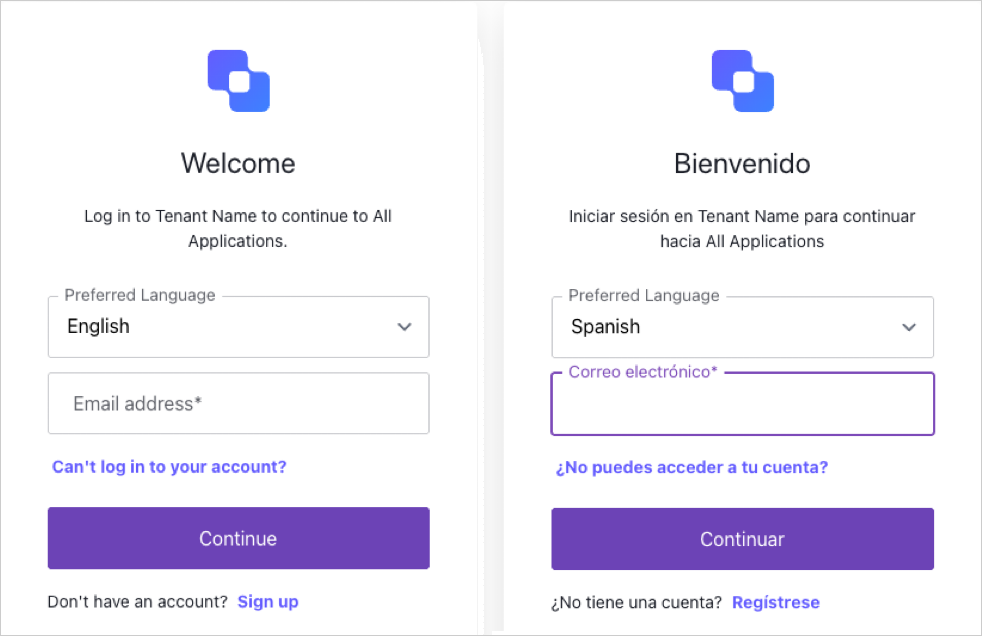
Implement flexible language selection
- Preparing your page template to facilitate language selection.
- Configuring individual prompts to display language selection to users.
Prepare your Universal Login page template
Configure individual Universal Login prompts
| Parameter | Description | Example Value |
|---|---|---|
language | Required. One or more languages to include in the language selection menu displayed to users. | es,fr,en |
persist | Required. Determines whether the language should persist across the session. | session |
action | Optional. Use this parameter in situations where you want users to be able to update their language without advancing the prompt. If the value is provided, the form is not automatically submitted when a user changes their language. Otherwise, the prompt automatically advances when a different language is selected. | change-language |
Signup Prompt: Identifier + Password
Signup Prompt: Identifier + Password
To add language selection to the
signup prompt, use the Set partials for a prompt endpoint:Login Prompt: Identifier First
Login Prompt: Identifier First
To add language selection to the
login-id prompt, use the Set partials for a prompt endpoint:Login Prompt: Passwordless (Email)
Login Prompt: Passwordless (Email)
To add language selection to the
login-passwordless-email-code prompt, use the Set partials for a prompt endpoint: