

Overview
- Sets up a production environment in Netlify that integrates with your Auth0 tenant in just a few clicks.
- Automatically creates an Application in your Auth0 tenant that connects with your Netlify project.
- Pre-loads your Auth0 credentials into Netlify, allowing you to skip some of the manual steps in this process.
Prerequisites
- A Netlify account with a project that you would like to integrate with. Visit Create your Netlify account to create an account.
- A web application that requires authentication, such as a React, Vue, or static site with serverless functions.
Add a Netlify integration
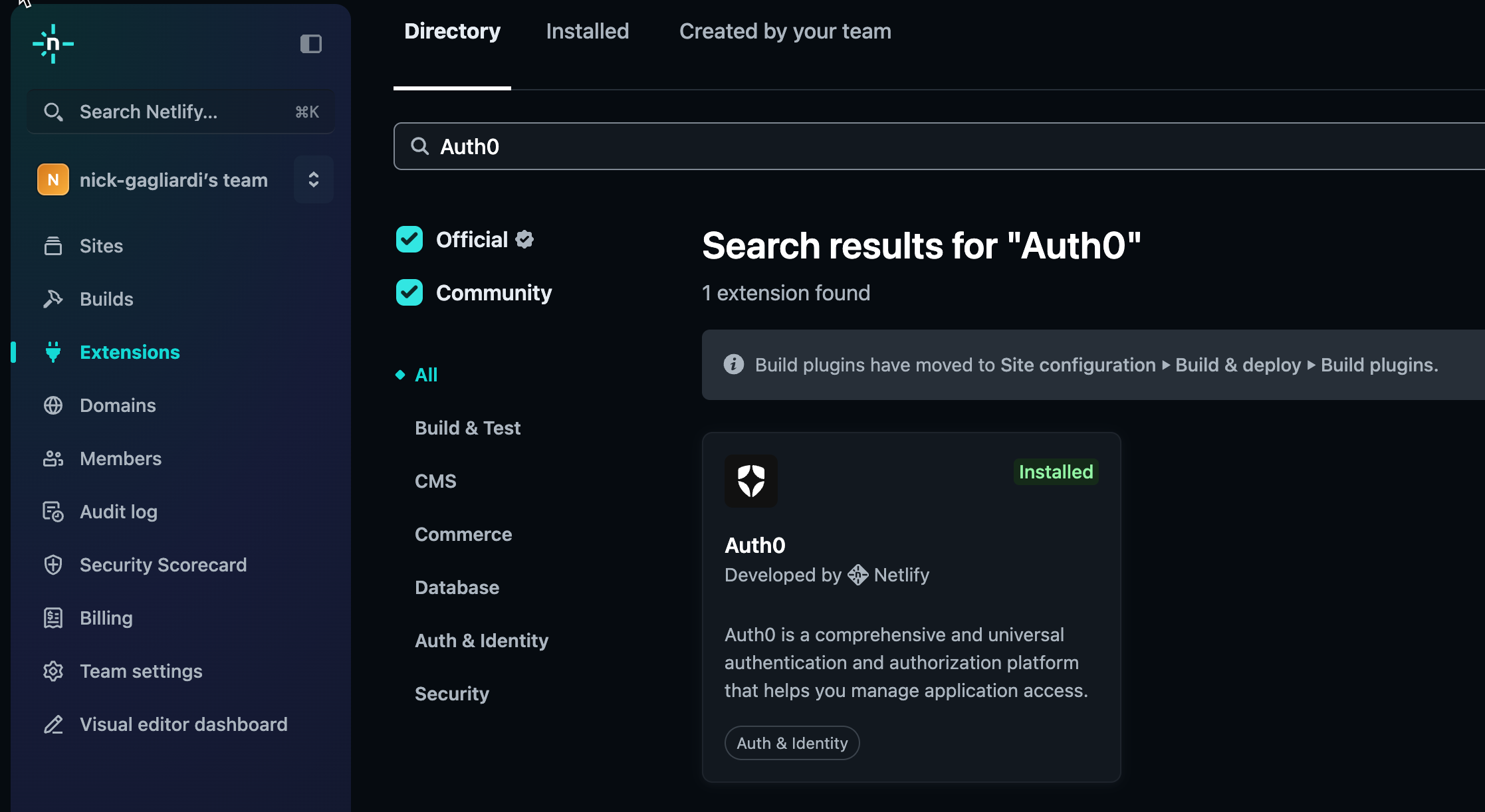
- From the Netlify dashboard, navigate to Extensions > Directory.
- Search for Auth0 and select Install.
- Select Install to proceed with the installation to your Auth0 integration portal.
Connect your site
- Navigate to the Site Configuration for the site you want to connect to Auth0.
- In the sidebar, select Auth0 under Access & security.
-
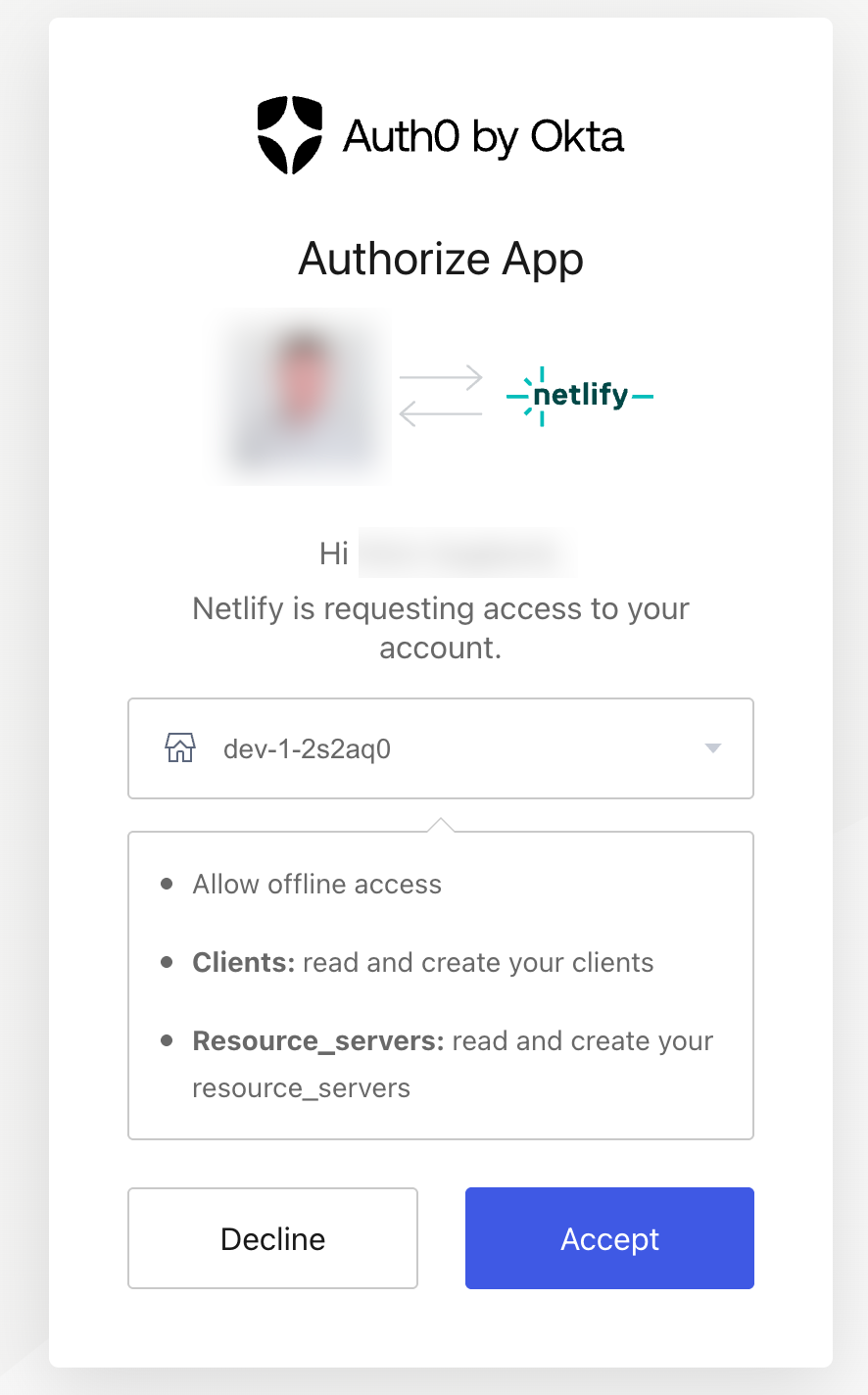
Select Link an Auth0 tenant and follow the prompts to connect to your Auth0 account. If you don’t already have an Auth0 account, you can sign up at https://auth0.com/signup.
-
Select your tenant from the dropdown list, and select Accept to authorize your account.
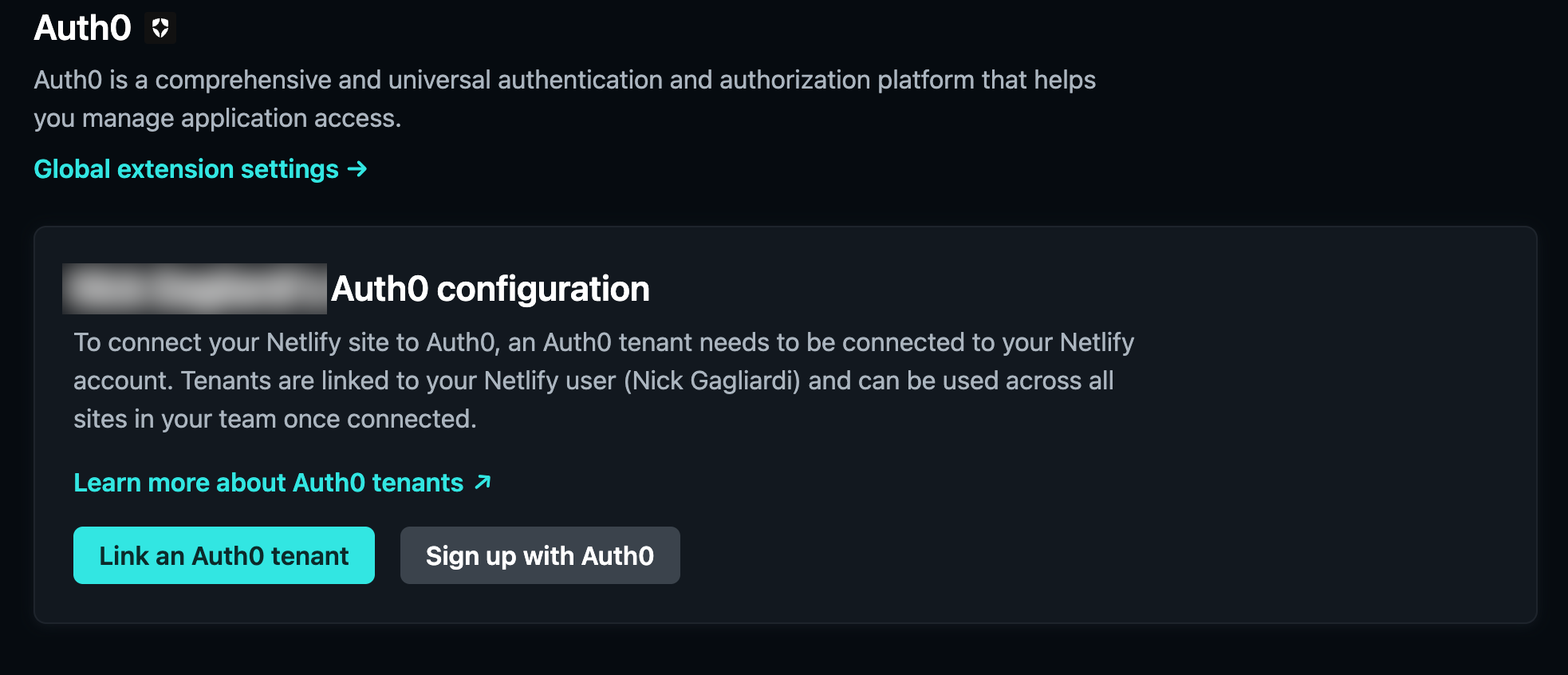
- After you have linked your tenant, select Add tenant .
-
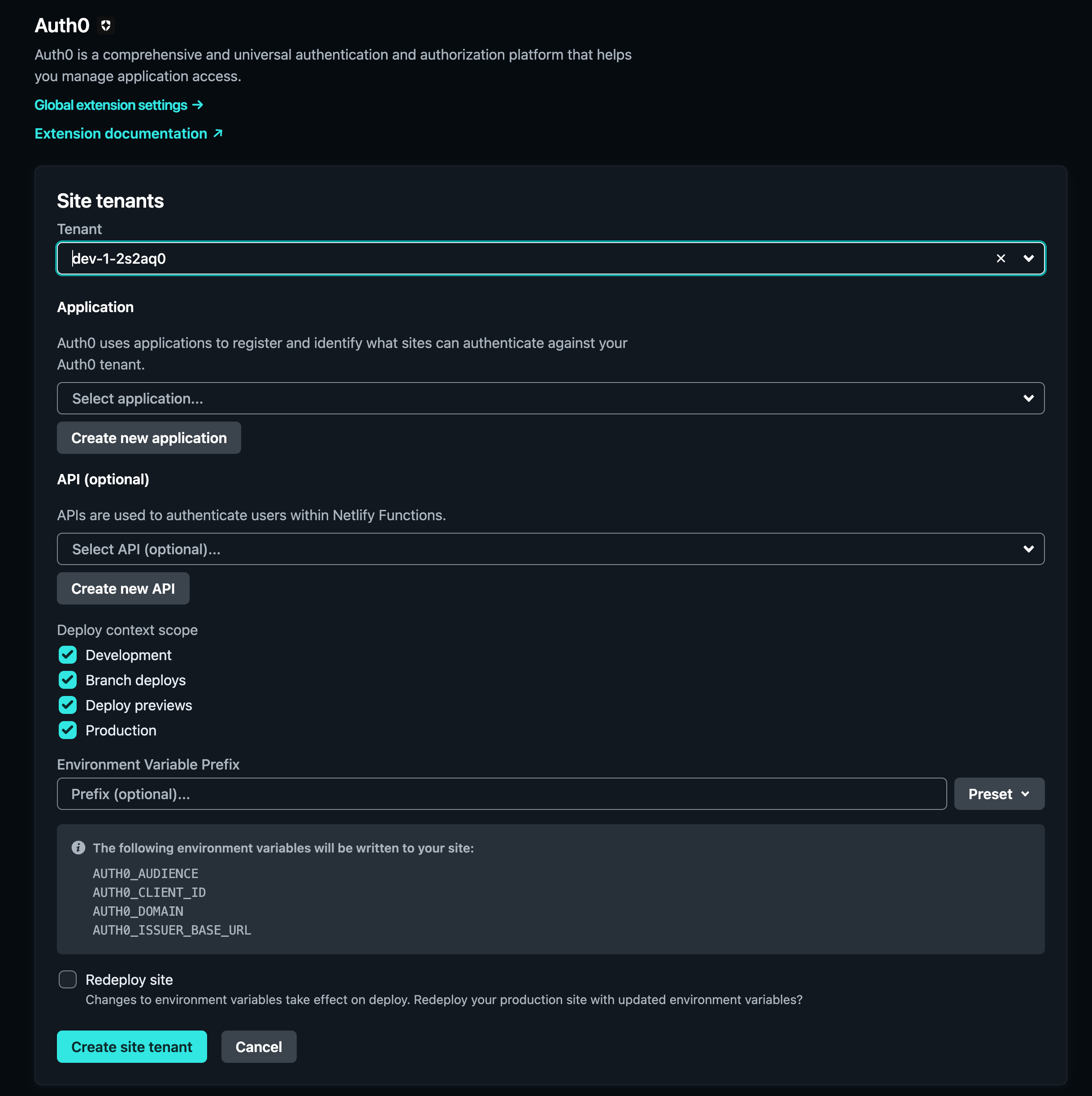
Fill out the required information for your tenant and application, enable the Redeploy site checkbox and select Create site tenant .
-
You should now see the successfully linked site tenant in your site configuration.
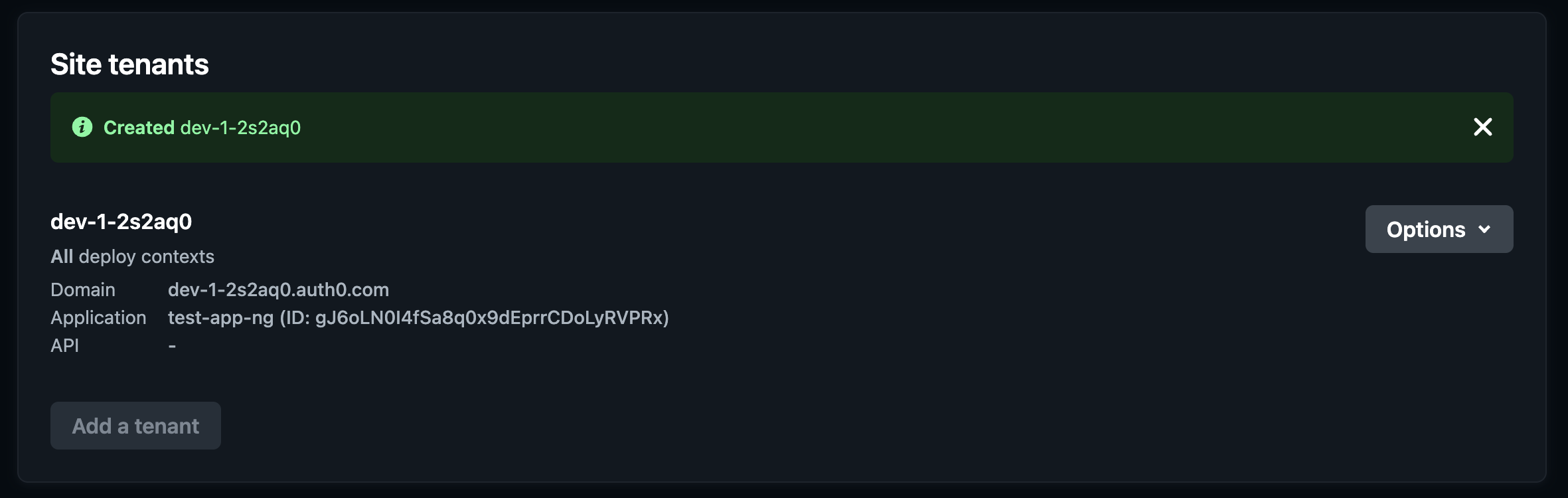
You should now see your client application and API in your Auth0 dashboard under Applications .
Set up the integration
- Go to your Netlify dashboard.
- Navigate to Site configuration > Environment variables.
-
Click Add a variable , and enter:
-
AUTH0_CLIENT_ID(your Auth0 Client ID) -
AUTH0_DOMAIN(your Auth0 domain)These variables, along with all other application information, can be found in your Auth0 dashboard under Applications > [Your app] > Settings .
-
Populate a configuration file
- Go to your Netlify dashboard.
- Navigate to Site configuration > Build & deploy > Build settings .
-
Modify the Build command to include a shell script before starting the build:
auth_config.json, and populates it with the environment variables AUTH0_CLIENT_ID and AUTH0_DOMAIN set above, ensuring the application has correct Auth0 settings at runtime.
Manage integration
- Navigate to the Auth0 Dashboard.
- Select Applications > Applications > [Your Netlify application]
- Confirm the Netlify application URI under Settings > Application URIs .